<?xml version="1.0" encoding="UTF-8" ?>
<rdf:RDF
  xmlns:rdf="http://www.w3.org/1999/02/22-rdf-syntax-ns#"
  xmlns="http://purl.org/rss/1.0/"
  xmlns:dc="http://purl.org/dc/elements/1.1/"
  xmlns:content="http://purl.org/rss/1.0/modules/content/">

  <channel rdf:about="https://witpress.blog.shinobi.jp/RSS/100/">
    <title>徒然・備忘ブログ</title>
    <link>https://witpress.blog.shinobi.jp/</link>
    <atom10:link xmlns:atom10="http://www.w3.org/2005/Atom" rel="self" type="application/rss+xml" href="https://witpress.blog.shinobi.jp/RSS/" />
    <atom10:link xmlns:atom10="http://www.w3.org/2005/Atom" rel="hub" href="http://pubsubhubbub.appspot.com/" />
    <description>今日一日を活きる</description>
    <dc:language>ja</dc:language>
    <dc:date>2014-05-06T21:09:12+09:00</dc:date>
    <items>
    <rdf:Seq>
      <rdf:li rdf:resource="https://witpress.blog.shinobi.jp/%E6%9C%AA%E9%81%B8%E6%8A%9E/winscp%E3%83%BBfilezilla%E3%83%BBffftp%E3%81%AE%E6%AF%94%E8%BC%83%EF%BC%9A" />
      <rdf:li rdf:resource="https://witpress.blog.shinobi.jp/%E6%9C%AA%E9%81%B8%E6%8A%9E/%E9%9B%86%E4%B8%AD%E5%8A%9Bbgm" />
      <rdf:li rdf:resource="https://witpress.blog.shinobi.jp/%E6%9C%AA%E9%81%B8%E6%8A%9E/youtube%E5%8B%95%E7%94%BB%E3%82%92%E3%80%80html%E3%81%AB%E5%9F%8B%E3%82%81%E8%BE%BC%E3%82%80" />
      <rdf:li rdf:resource="https://witpress.blog.shinobi.jp/%E6%97%A5%E8%A8%98/outlook%E8%B5%B7%E5%8B%95%E3%83%BB%E3%83%A1%E3%83%BC%E3%83%AB%E3%82%A2%E3%82%A4%E3%83%86%E3%83%A0%E8%87%AA%E5%8B%95%E4%BD%9C%E6%88%90%EF%BC%88excelvba-" />
      <rdf:li rdf:resource="https://witpress.blog.shinobi.jp/%E6%97%A5%E8%A8%98/%E6%A5%BD%E5%A4%A9%E3%81%AE%E3%82%A2%E3%83%95%E3%82%A3%E3%83%AA%E3%82%A8%E3%82%A4%E3%83%88%E3%83%84%E3%83%BC%E3%83%AB" />
      <rdf:li rdf:resource="https://witpress.blog.shinobi.jp/%E3%83%AD%E3%83%BC%E3%82%AB%E3%83%AB%E9%96%8B%E7%99%BA%E7%92%B0%E5%A2%83%E3%81%AE%E6%A7%8B%E7%AF%89/20140411" />
      <rdf:li rdf:resource="https://witpress.blog.shinobi.jp/html-css/%E4%BD%BF%E7%94%A8%E9%96%A2%E6%95%B0%E7%AD%89%E3%81%AE%E3%82%92%E3%83%9D%E3%83%BC%E3%83%88%E3%81%97%E3%81%A6%E3%81%84%E3%82%8B%E3%83%96%E3%83%A9%E3%82%A6%E3%82%B6%E3%81%AE%E3%83%90%E3%83%BC%E3%82%B8%E3%83%A7%E3%83%B3%E3%82%92%E8%AA%BF%E3%81%B9%E3%82%8B" />
      <rdf:li rdf:resource="https://witpress.blog.shinobi.jp/%E6%9C%AA%E9%81%B8%E6%8A%9E/php%E6%8A%80%E8%A1%93%E8%80%85%E8%AA%8D%E5%AE%9A%E8%A9%A6%E9%A8%93%E3%80%80%E5%88%9D%E7%B4%9A%E5%90%88%E6%A0%BC%E3%80%82" />
      <rdf:li rdf:resource="https://witpress.blog.shinobi.jp/%E6%9C%AA%E9%81%B8%E6%8A%9E/%E3%80%8Cdropbox%E3%80%8D%E3%81%A8%E3%80%8Cevernote%E3%80%8D%E3%81%AE%E9%81%95%E3%81%84%E3%81%A8%E3%81%AF" />
      <rdf:li rdf:resource="https://witpress.blog.shinobi.jp/.install/.install" />
    </rdf:Seq>
    </items>
  </channel>

  <item rdf:about="https://witpress.blog.shinobi.jp/%E6%9C%AA%E9%81%B8%E6%8A%9E/winscp%E3%83%BBfilezilla%E3%83%BBffftp%E3%81%AE%E6%AF%94%E8%BC%83%EF%BC%9A">
    <link>https://witpress.blog.shinobi.jp/%E6%9C%AA%E9%81%B8%E6%8A%9E/winscp%E3%83%BBfilezilla%E3%83%BBffftp%E3%81%AE%E6%AF%94%E8%BC%83%EF%BC%9A</link>
    <title>WinSCP・FileZilla・FFFTPの比較：ベストなFTPソフトの選び方</title>
    <description>http://synclogue-navi.com/winscp-filezilla
１．WinSCPとFileZillaとFFFTPについての基礎知識
FFFTPは言わずと知れた定番の国産FTPクライアントソフトですが、2011年に原作者による開発が打ち切られています。そのため、傾向としてWinS...</description>
    <content:encoded><![CDATA[http://synclogue-navi.com/winscp-filezilla
<h2 id="smoothplay1" style="color: #19214d; font-family: 'Lucida Grande', 'segoe UI', 'ヒラギノ角ゴ ProN W3', 'Hiragino Kaku Gothic ProN', Meiryo, Verdana, Arial, sans-serif; font-size: 22px; line-height: 1.5; margin: 60px 0px 30px; padding: 18px 0px 10px 30px; background-image: url('http://synclogue-navi.com/wordpress/wp-content/themes/balance/images/kumo002.png'); border-bottom-style: solid; border-bottom-width: 3px; border-bottom-color: #20a6e3; background-position: 0% 0%; background-repeat: no-repeat no-repeat;">１．WinSCPとFileZillaとFFFTPについての基礎知識</h2>
<p style="color: #565656; font-family: 'Lucida Grande', 'segoe UI', 'ヒラギノ角ゴ ProN W3', 'Hiragino Kaku Gothic ProN', Meiryo, Verdana, Arial, sans-serif; line-height: 1.7em; margin: 20px 0px; padding: 0px;">FFFTPは言わずと知れた定番の国産FTPクライアントソフトですが、2011年に原作者による開発が打ち切られています。そのため、傾向としてWinSCPやFileZillaへ移行するユーザーが増えています。</p>
<p style="color: #565656; font-family: 'Lucida Grande', 'segoe UI', 'ヒラギノ角ゴ ProN W3', 'Hiragino Kaku Gothic ProN', Meiryo, Verdana, Arial, sans-serif; line-height: 1.7em; margin: 20px 0px; padding: 0px;">Filezillaは世界的に利用人口の多く、WinSCPも非常にメジャーなFTPクライアントソフトです。</p>
<p style="color: #565656; font-family: 'Lucida Grande', 'segoe UI', 'ヒラギノ角ゴ ProN W3', 'Hiragino Kaku Gothic ProN', Meiryo, Verdana, Arial, sans-serif; line-height: 1.7em; margin: 20px 0px; padding: 0px;">どれも、セキュリティ面や、機能面に違いがあるので抑えておきましょう。</p>
<h2 id="smoothplay2" style="color: #19214d; font-family: 'Lucida Grande', 'segoe UI', 'ヒラギノ角ゴ ProN W3', 'Hiragino Kaku Gothic ProN', Meiryo, Verdana, Arial, sans-serif; font-size: 22px; line-height: 1.5; margin: 60px 0px 30px; padding: 18px 0px 10px 30px; background-image: url('http://synclogue-navi.com/wordpress/wp-content/themes/balance/images/kumo002.png'); border-bottom-style: solid; border-bottom-width: 3px; border-bottom-color: #20a6e3; background-position: 0% 0%; background-repeat: no-repeat no-repeat;">２．WinSCPとFileZillaとFFFTPの比較</h2>
<p style="color: #565656; font-family: 'Lucida Grande', 'segoe UI', 'ヒラギノ角ゴ ProN W3', 'Hiragino Kaku Gothic ProN', Meiryo, Verdana, Arial, sans-serif; line-height: 1.7em; margin: 20px 0px; padding: 0px;">「セキュリティ対応状況」、「機能」の観点でそれぞれ比較していきます。</p>
<h3 style="color: #565656; font-family: 'Lucida Grande', 'segoe UI', 'ヒラギノ角ゴ ProN W3', 'Hiragino Kaku Gothic ProN', Meiryo, Verdana, Arial, sans-serif; font-size: 18px; line-height: 1.625; margin: 50px 0px 20px; padding: 5px 0px 5px 10px; border-bottom-width: 1px; border-bottom-style: dotted; border-bottom-color: #2ca7e1; border-left-width: 5px; border-left-style: solid; border-left-color: #2ca7e1;">セキュリティ対応状況</h3>
<p style="color: #565656; font-family: 'Lucida Grande', 'segoe UI', 'ヒラギノ角ゴ ProN W3', 'Hiragino Kaku Gothic ProN', Meiryo, Verdana, Arial, sans-serif; line-height: 1.7em; margin: 20px 0px; padding: 0px;">セキュリティ対応状況については、「<a class="out" href="http://www.geocities.co.jp/Playtown-Yoyo/6130/notes/ftp-virus.htm" target="_blank" style="color: #2ca7e1; text-decoration: none; padding-right: 15px; background-image: url('http://synclogue-navi.com/wordpress/wp-content/themes/balance/images/out-icon.png'); background-position: 100% 50%; background-repeat: no-repeat no-repeat;">FTPソフトとウイルス感染によるハッキング被害</a>」を参考にさせていただきました。</p>
<p style="color: #565656; font-family: 'Lucida Grande', 'segoe UI', 'ヒラギノ角ゴ ProN W3', 'Hiragino Kaku Gothic ProN', Meiryo, Verdana, Arial, sans-serif; line-height: 1.7em; margin: 20px 0px; padding: 0px;"><img class="aligncenter size-full wp-image-1798" alt="WinSCP FileZilla" src="http://synclogue-navi.com/wordpress/wp-content/uploads/2013/11/8ed0d61ff1ea8fae5206ee762ac029f2.png" width="625" height="159" style="height: auto; display: block; margin: 0px auto 10px;" /></p>
<p style="color: #565656; font-family: 'Lucida Grande', 'segoe UI', 'ヒラギノ角ゴ ProN W3', 'Hiragino Kaku Gothic ProN', Meiryo, Verdana, Arial, sans-serif; line-height: 1.7em; margin: 20px 0px; padding: 0px 0px 0px 30px;">※補足：マスターパスワードとは<br />
保存したパスワードなどのログイン情報は盗まれる可能性がありますが、マスターパスワードを使用すると、ログイン情報は暗号化して保存され、ログイン時は、設定したマスターパスワードを入力しないと復号できないようになります。そのため、マスターパスワード機能があるとパスワードが盗まれにくくなります。</p>
<p style="color: #565656; font-family: 'Lucida Grande', 'segoe UI', 'ヒラギノ角ゴ ProN W3', 'Hiragino Kaku Gothic ProN', Meiryo, Verdana, Arial, sans-serif; line-height: 1.7em; margin: 20px 0px; padding: 0px;"><strong>WinSCP</strong></p>
<p style="color: #565656; font-family: 'Lucida Grande', 'segoe UI', 'ヒラギノ角ゴ ProN W3', 'Hiragino Kaku Gothic ProN', Meiryo, Verdana, Arial, sans-serif; line-height: 1.7em; margin: 20px 0px; padding: 0px;">FTPS接続はもちろん、SSHを利用した暗号化ファイル転送方式であるSFTP接続とSCP接続にも対応しているのがポイントです。<br />
また、マスターパスワードにも対応しています。</p>
<p style="color: #565656; font-family: 'Lucida Grande', 'segoe UI', 'ヒラギノ角ゴ ProN W3', 'Hiragino Kaku Gothic ProN', Meiryo, Verdana, Arial, sans-serif; line-height: 1.7em; margin: 20px 0px; padding: 0px;"><strong>FileZilla</strong></p>
<p style="color: #565656; font-family: 'Lucida Grande', 'segoe UI', 'ヒラギノ角ゴ ProN W3', 'Hiragino Kaku Gothic ProN', Meiryo, Verdana, Arial, sans-serif; line-height: 1.7em; margin: 20px 0px; padding: 0px;">注意すべき点は、マスターパスワード機能が無いことです。つまり、保存したパスワードなどのログイン情報を、マスターパスワードを使って暗号化することができません。<br />
※パスワードを保存せずに、ログイン時に毎回入力する設定にすれば問題ありません。接続方式は、暗号化された状態でセキュアな通信が出来るFTPS接続とSFTP接続に対応しています。</p>
<p style="color: #565656; font-family: 'Lucida Grande', 'segoe UI', 'ヒラギノ角ゴ ProN W3', 'Hiragino Kaku Gothic ProN', Meiryo, Verdana, Arial, sans-serif; line-height: 1.7em; margin: 20px 0px; padding: 0px;"><strong>FFFTP</strong><strong><br />
</strong>※FFFTPは2011年に原作者による開発が終了していますが、有志の方々により改版されています。</p>
<p style="color: #565656; font-family: 'Lucida Grande', 'segoe UI', 'ヒラギノ角ゴ ProN W3', 'Hiragino Kaku Gothic ProN', Meiryo, Verdana, Arial, sans-serif; line-height: 1.7em; margin: 20px 0px; padding: 0px;">本家の開発が終了したFFFTPでは、パスワードやファイルを暗号化せずに送受信するFTP接続しか対応していませんでしたが、開発引継ぎ版では、暗号化された状態でセキュアな通信が出来るFTPS接続に対応しています。</p>
<p style="color: #565656; font-family: 'Lucida Grande', 'segoe UI', 'ヒラギノ角ゴ ProN W3', 'Hiragino Kaku Gothic ProN', Meiryo, Verdana, Arial, sans-serif; line-height: 1.7em; margin: 20px 0px; padding: 0px;">また、マスターパスワードの設定が可能です。</p>
<h3 style="color: #565656; font-family: 'Lucida Grande', 'segoe UI', 'ヒラギノ角ゴ ProN W3', 'Hiragino Kaku Gothic ProN', Meiryo, Verdana, Arial, sans-serif; font-size: 18px; line-height: 1.625; margin: 50px 0px 20px; padding: 5px 0px 5px 10px; border-bottom-width: 1px; border-bottom-style: dotted; border-bottom-color: #2ca7e1; border-left-width: 5px; border-left-style: solid; border-left-color: #2ca7e1;">機能</h3>
<p style="color: #565656; font-family: 'Lucida Grande', 'segoe UI', 'ヒラギノ角ゴ ProN W3', 'Hiragino Kaku Gothic ProN', Meiryo, Verdana, Arial, sans-serif; line-height: 1.7em; margin: 20px 0px; padding: 0px;">機能については、「<a class="out" href="http://www.lifehacker.jp/2011/09/110909filezilla.html" target="_blank" style="color: #2ca7e1; text-decoration: none; padding-right: 15px; background-image: url('http://synclogue-navi.com/wordpress/wp-content/themes/balance/images/out-icon.png'); background-position: 100% 50%; background-repeat: no-repeat no-repeat;">米LHが選ぶベストなFTPアプリは『FileZilla』</a>」「<a class="out" href="http://techblog.ecstudio.jp/tech-tips/devenv-tips/fileziila-verup.html" target="_blank" style="color: #2ca7e1; text-decoration: none; padding-right: 15px; background-image: url('http://synclogue-navi.com/wordpress/wp-content/themes/balance/images/out-icon.png'); background-position: 100% 50%; background-repeat: no-repeat no-repeat;">バージョンアップして格段に使える様になったFileZilla</a>」「<a class="out" href="http://wiki.livedoor.jp/diveintounlimit/d/FTP%A5%BD%A5%D5%A5%C8%C8%E6%B3%D3" target="_blank" style="color: #2ca7e1; text-decoration: none; padding-right: 15px; background-image: url('http://synclogue-navi.com/wordpress/wp-content/themes/balance/images/out-icon.png'); background-position: 100% 50%; background-repeat: no-repeat no-repeat;">FTPソフト比較</a>」を参考にさせていただきました。</p>
<p style="color: #565656; font-family: 'Lucida Grande', 'segoe UI', 'ヒラギノ角ゴ ProN W3', 'Hiragino Kaku Gothic ProN', Meiryo, Verdana, Arial, sans-serif; line-height: 1.7em; margin: 20px 0px; padding: 0px;"><img class="aligncenter size-full wp-image-1799" alt="WinSCP FileZilla" src="http://synclogue-navi.com/wordpress/wp-content/uploads/2013/11/f29c23cc8b5eb55910e1ce91f6dc6a9c.png" width="624" height="677" style="height: auto; display: block; margin: 0px auto 10px;" /></p>
<p style="color: #565656; font-family: 'Lucida Grande', 'segoe UI', 'ヒラギノ角ゴ ProN W3', 'Hiragino Kaku Gothic ProN', Meiryo, Verdana, Arial, sans-serif; line-height: 1.7em; margin: 20px 0px; padding: 0px;"><strong>WinSCP</strong></p>
<p style="color: #565656; font-family: 'Lucida Grande', 'segoe UI', 'ヒラギノ角ゴ ProN W3', 'Hiragino Kaku Gothic ProN', Meiryo, Verdana, Arial, sans-serif; line-height: 1.7em; margin: 20px 0px; padding: 0px;"><strong>強み<br />
</strong>・基本的な機能が充実している<br />
・コマンダーとエクスプローラのインターフェイスが選択できる</p>
<p style="color: #565656; font-family: 'Lucida Grande', 'segoe UI', 'ヒラギノ角ゴ ProN W3', 'Hiragino Kaku Gothic ProN', Meiryo, Verdana, Arial, sans-serif; line-height: 1.7em; margin: 20px 0px; padding: 0px;"><strong>弱み</strong><br />
・パワーユーザには機能的に物足りない部分も<br />
・ファイル転送時の動作が重い</p>
<p style="color: #565656; font-family: 'Lucida Grande', 'segoe UI', 'ヒラギノ角ゴ ProN W3', 'Hiragino Kaku Gothic ProN', Meiryo, Verdana, Arial, sans-serif; line-height: 1.7em; margin: 20px 0px; padding: 0px;"><strong>FileZilla</strong></p>
<p style="color: #565656; font-family: 'Lucida Grande', 'segoe UI', 'ヒラギノ角ゴ ProN W3', 'Hiragino Kaku Gothic ProN', Meiryo, Verdana, Arial, sans-serif; line-height: 1.7em; margin: 20px 0px; padding: 0px;"><strong>強み</strong><br />
・大量のファイル転送でも安定して高速で動作する（最大同時転送数10）<br />
・タブで複数接続が出来る</p>
<p style="color: #565656; font-family: 'Lucida Grande', 'segoe UI', 'ヒラギノ角ゴ ProN W3', 'Hiragino Kaku Gothic ProN', Meiryo, Verdana, Arial, sans-serif; line-height: 1.7em; margin: 20px 0px; padding: 0px;"><strong>弱み</strong><br />
・キーバインドに対応していない<br />
・ミラーリングアップロードに対応していない<br />
・ファイルのパーミッション自動変更に対応していない</p>
<p style="color: #565656; font-family: 'Lucida Grande', 'segoe UI', 'ヒラギノ角ゴ ProN W3', 'Hiragino Kaku Gothic ProN', Meiryo, Verdana, Arial, sans-serif; line-height: 1.7em; margin: 20px 0px; padding: 0px;"><strong>FFFTP</strong></p>
<p style="color: #565656; font-family: 'Lucida Grande', 'segoe UI', 'ヒラギノ角ゴ ProN W3', 'Hiragino Kaku Gothic ProN', Meiryo, Verdana, Arial, sans-serif; line-height: 1.7em; margin: 20px 0px; padding: 0px;"><strong>強み<br />
</strong>・基本的な機能が充実している</p>
<p style="color: #565656; font-family: 'Lucida Grande', 'segoe UI', 'ヒラギノ角ゴ ProN W3', 'Hiragino Kaku Gothic ProN', Meiryo, Verdana, Arial, sans-serif; line-height: 1.7em; margin: 20px 0px; padding: 0px;"><strong>弱み<br />
</strong>・リモートでのフォルダ間ファイル移動が上手くいかないことがある</p>
<h2 id="smoothplay3" style="color: #19214d; font-family: 'Lucida Grande', 'segoe UI', 'ヒラギノ角ゴ ProN W3', 'Hiragino Kaku Gothic ProN', Meiryo, Verdana, Arial, sans-serif; font-size: 22px; line-height: 1.5; margin: 60px 0px 30px; padding: 18px 0px 10px 30px; background-image: url('http://synclogue-navi.com/wordpress/wp-content/themes/balance/images/kumo002.png'); border-bottom-style: solid; border-bottom-width: 3px; border-bottom-color: #20a6e3; background-position: 0% 0%; background-repeat: no-repeat no-repeat;">３．WinSCPとFileZillaとFFFTPのダウンロードサイト</h2>
<h3 style="color: #565656; font-family: 'Lucida Grande', 'segoe UI', 'ヒラギノ角ゴ ProN W3', 'Hiragino Kaku Gothic ProN', Meiryo, Verdana, Arial, sans-serif; font-size: 18px; line-height: 1.625; margin: 50px 0px 20px; padding: 5px 0px 5px 10px; border-bottom-width: 1px; border-bottom-style: dotted; border-bottom-color: #2ca7e1; border-left-width: 5px; border-left-style: solid; border-left-color: #2ca7e1;">WinSCP</h3>
<p style="color: #565656; font-family: 'Lucida Grande', 'segoe UI', 'ヒラギノ角ゴ ProN W3', 'Hiragino Kaku Gothic ProN', Meiryo, Verdana, Arial, sans-serif; line-height: 1.7em; margin: 20px 0px; padding: 0px;">ダウンロードサイト、インストール方法は別記事の「<a class="in" href="http://synclogue-navi.com/winscp-install" target="_blank" style="color: #2ca7e1; text-decoration: none; padding-right: 15px; background-image: url('http://synclogue-navi.com/wordpress/wp-content/themes/balance/images/in-icon.png'); background-position: 100% 50%; background-repeat: no-repeat no-repeat;">迷わずできる！WinSCP 5.5日本語版のダウンロードとインストール方法</a>」で詳しく説明しているので、参考にしてください。</p>
<h3 style="color: #565656; font-family: 'Lucida Grande', 'segoe UI', 'ヒラギノ角ゴ ProN W3', 'Hiragino Kaku Gothic ProN', Meiryo, Verdana, Arial, sans-serif; font-size: 18px; line-height: 1.625; margin: 50px 0px 20px; padding: 5px 0px 5px 10px; border-bottom-width: 1px; border-bottom-style: dotted; border-bottom-color: #2ca7e1; border-left-width: 5px; border-left-style: solid; border-left-color: #2ca7e1;">FileZilla</h3>
<p style="color: #565656; font-family: 'Lucida Grande', 'segoe UI', 'ヒラギノ角ゴ ProN W3', 'Hiragino Kaku Gothic ProN', Meiryo, Verdana, Arial, sans-serif; line-height: 1.7em; margin: 20px 0px; padding: 0px;">「<a class="out" href="https://filezilla-project.org/" target="_blank" style="color: #2ca7e1; text-decoration: none; padding-right: 15px; background-image: url('http://synclogue-navi.com/wordpress/wp-content/themes/balance/images/out-icon.png'); background-position: 100% 50%; background-repeat: no-repeat no-repeat;">FileZilla公式ダウンロードサイト</a>」からダウンロードしてください。<br />
FileZillaのインストール方法や使い方も、後日記事を書く予定です。</p>
<h3 style="color: #565656; font-family: 'Lucida Grande', 'segoe UI', 'ヒラギノ角ゴ ProN W3', 'Hiragino Kaku Gothic ProN', Meiryo, Verdana, Arial, sans-serif; font-size: 18px; line-height: 1.625; margin: 50px 0px 20px; padding: 5px 0px 5px 10px; border-bottom-width: 1px; border-bottom-style: dotted; border-bottom-color: #2ca7e1; border-left-width: 5px; border-left-style: solid; border-left-color: #2ca7e1;">FFFTP</h3>
<p style="color: #565656; font-family: 'Lucida Grande', 'segoe UI', 'ヒラギノ角ゴ ProN W3', 'Hiragino Kaku Gothic ProN', Meiryo, Verdana, Arial, sans-serif; line-height: 1.7em; margin: 20px 0px; padding: 0px;">ダウンロードサイト、インストール方法は別記事の「<a class="in" href="http://synclogue-navi.com/ffftp-install" target="_blank" style="color: #2ca7e1; text-decoration: none; padding-right: 15px; background-image: url('http://synclogue-navi.com/wordpress/wp-content/themes/balance/images/in-icon.png'); background-position: 100% 50%; background-repeat: no-repeat no-repeat;">FFFTPのダウンロードとインストール方法：簡単に素早くできる解説</a>」で詳しく説明しているので、参考にしてください。</p>
<h2 style="color: #19214d; font-family: 'Lucida Grande', 'segoe UI', 'ヒラギノ角ゴ ProN W3', 'Hiragino Kaku Gothic ProN', Meiryo, Verdana, Arial, sans-serif; font-size: 22px; line-height: 1.5; margin: 60px 0px 30px; padding: 18px 0px 10px 30px; background-image: url('http://synclogue-navi.com/wordpress/wp-content/themes/balance/images/kumo002.png'); border-bottom-style: solid; border-bottom-width: 3px; border-bottom-color: #20a6e3; background-position: 0% 0%; background-repeat: no-repeat no-repeat;">まとめ</h2>
<p style="color: #565656; font-family: 'Lucida Grande', 'segoe UI', 'ヒラギノ角ゴ ProN W3', 'Hiragino Kaku Gothic ProN', Meiryo, Verdana, Arial, sans-serif; line-height: 1.7em; margin: 20px 0px; padding: 0px;">どのFTPクライアントソフトにするか決められましたか？</p>
<p style="color: #565656; font-family: 'Lucida Grande', 'segoe UI', 'ヒラギノ角ゴ ProN W3', 'Hiragino Kaku Gothic ProN', Meiryo, Verdana, Arial, sans-serif; line-height: 1.7em; margin: 20px 0px; padding: 0px;">最後にまとめとして、ソフトを選ぶ時の基準をご紹介します。</p>
<ul style="margin: 0px; padding: 0px 0px 25px; color: #565656; font-family: 'Lucida Grande', 'segoe UI', 'ヒラギノ角ゴ ProN W3', 'Hiragino Kaku Gothic ProN', Meiryo, Verdana, Arial, sans-serif; font-size: 15px; line-height: 24.375px;">
<li style="margin: 0px 0px 0px 30px; padding: 0px; list-style-type: square;">大量のサイト管理をしていて、大量のファイル転送を行う上級者の方<br />
&rArr;<strong>FileZilla&nbsp;</strong>がおすすめです。</li>
</ul>
<ul style="margin: 0px; padding: 0px 0px 25px; color: #565656; font-family: 'Lucida Grande', 'segoe UI', 'ヒラギノ角ゴ ProN W3', 'Hiragino Kaku Gothic ProN', Meiryo, Verdana, Arial, sans-serif; font-size: 15px; line-height: 24.375px;">
<li style="margin: 0px 0px 0px 30px; padding: 0px; position: static; list-style-type: square;">大量のファイル転送を行うことはほとんどなく基本的な機能をシンプルに使いたい方<br />
&rArr;<strong>WinSCP&nbsp;</strong>か&nbsp;<strong>FFFTP&nbsp;</strong>がおすすめです。SFTP接続したい方は&nbsp;<strong>WinSCP&nbsp;</strong>がおすすめです。</li>
</ul>]]></content:encoded>
    <dc:subject>備忘録</dc:subject>
    <dc:date>2014-05-06T21:09:12+09:00</dc:date>
    <dc:creator>Jomorich</dc:creator>
    <dc:publisher>NINJA BLOG</dc:publisher>
    <dc:rights>Jomorich</dc:rights>
  </item>
  <item rdf:about="https://witpress.blog.shinobi.jp/%E6%9C%AA%E9%81%B8%E6%8A%9E/%E9%9B%86%E4%B8%AD%E5%8A%9Bbgm">
    <link>https://witpress.blog.shinobi.jp/%E6%9C%AA%E9%81%B8%E6%8A%9E/%E9%9B%86%E4%B8%AD%E5%8A%9Bbgm</link>
    <title>集中力BGM</title>
    <description>  集中力、注意力を高め、仕事、勉強の効率を高める 音楽【作業用ＢＧＭ 】  </description>
    <content:encoded><![CDATA[<h1 id="watch-headline-title" class="yt" style="margin: 0px 0px 5px; padding: 0px; border: 0px; font-size: 24px; background-color: transparent; color: #222222; font-weight: normal; overflow: hidden; white-space: nowrap; word-wrap: normal; text-overflow: ellipsis; font-family: arial, sans-serif;"><span id="eow-title" class="watch-title long-title yt-uix-expander-head" dir="ltr" title="集中力、注意力を高め、仕事、勉強の効率を高める音楽【作業用ＢＧＭ】" style="margin: 0px; padding: 0px; border: 0px; font-size: 0.9em; background-color: transparent; cursor: pointer; -webkit-user-select: auto; letter-spacing: -0.03em; background-position: initial initial; background-repeat: initial initial;">集中力、注意力を高め、仕事、勉強の効率を高める<a href="集中力、注意力を高め、仕事、勉強の効率を高める音楽【作業用ＢＧＭ】" title="">音楽【作業用ＢＧＭ</a>】</span></h1>]]></content:encoded>
    <dc:subject>備忘録</dc:subject>
    <dc:date>2014-04-27T21:00:48+09:00</dc:date>
    <dc:creator>Jomorich</dc:creator>
    <dc:publisher>NINJA BLOG</dc:publisher>
    <dc:rights>Jomorich</dc:rights>
  </item>
  <item rdf:about="https://witpress.blog.shinobi.jp/%E6%9C%AA%E9%81%B8%E6%8A%9E/youtube%E5%8B%95%E7%94%BB%E3%82%92%E3%80%80html%E3%81%AB%E5%9F%8B%E3%82%81%E8%BE%BC%E3%82%80">
    <link>https://witpress.blog.shinobi.jp/%E6%9C%AA%E9%81%B8%E6%8A%9E/youtube%E5%8B%95%E7%94%BB%E3%82%92%E3%80%80html%E3%81%AB%E5%9F%8B%E3%82%81%E8%BE%BC%E3%82%80</link>
    <title>YouTube動画を　htmlに埋め込む</title>
    <description>通常、youtube画像を
1）右クリック
2）「埋め込みコードをコピー」
3）htmlに貼り付け
で、完了

▼基本コードの解説
************************************************************************************...</description>
    <content:encoded><![CDATA[通常、youtube画像を<br />
1）右クリック<br />
2）「埋め込みコードをコピー」<br />
3）htmlに貼り付け<br />
で、完了<br />
<br />
<span style="font-size: large; color: #ff0000;">▼基本コードの解説<br />
<span style="color: #000000; font-size: 14px;">**************************************************************************************************************</span><br />
</span>【サンプルコード】<br />
<strong> </strong>＜iframe src="//www.youtube.com/embed/7DGAoeMXBWM" width="560" height="315" frameborder="0" allowfullscreen＞＜/iframe＞<br />
**************************************************************************************************************<br />

<div><span style="color: #0000ff;">【再生する動画のURL】</span></div>
<div></div>
<div>・src="//www.youtube.com/embed/7DGAoeMXBWM"<br />

<div>この値に「http:」と付け加えると、YouTubeの動画そのものが表示されます。</div>
<div>http://www.youtube.com/embed/7DGAoeMXBWM</div>
<div>この動画を表示しますよという意味ですね。</div>
<div></div>
<div><span style="color: #0000ff;">【大きさの設定】</span></div>
<div></div>
<div>・width="640"・・・横幅を設定できます</div>
<div>・height="360"・・・縦幅を設定できます</div>
<div></div>
<div>数値は自由に指定が可能ですが、縦横の比率を間違えると動画が歪んで表示されてしまいます。また、小さ過ぎると再生ができない場合もあるようです。</div>
<div></div>
<div><span style="color: #0000ff;">【埋め込み時のプレイヤーに枠線をつけるかどうか】</span></div>
<div></div>
<div>・frameborder="0"・・・（周囲に枠線をつけない）</div>
<div>・frameborder="1"・・・（周囲に枠線をつける）</div>
<div></div>
<div>「1」にするとプレイヤーの外周に1pxの枠線が表示されます。</div>
<div></div>
<div><span style="color: #0000ff;">【全画面表示について】</span></div>
<div></div>
<div>・allowfullscreen・・・無し（全画面表示ができないようにする）</div>
<div>・allowfullscreen・・・有り（全画面表示ができるようにする）</div>
<div></div>
<div>全画面表示の制御が可能になります。allowfullscreenをつけない場合、全画面表示ができなくなります。</div>
</div>
<br />
<span style="font-size: large; color: #ff0000;"><strong>▼【再生する動画のURL】の後ろに、パラメーターを付加することによって、様々な再生方法を実現。</strong></span><br />

<div><br />
<strong><span style="color: #0000ff;">・再生後に表示される関連動画を表示させたくない</span></strong><br />

<div>
<div><strong><span style="color: #008080;">【追加コード】</span></strong></div>
<div><span style="color: #ff0000;">rel=0</span></div>
</div>
<div><strong><span style="color: #008080;"><br />
【追加後の埋め込みコード】</span></strong><br />
＜iframe src="//www.youtube.com/embed/7DGAoeMXBWM?rel=0" width="560" height="315" frameborder="0" allowfullscreen＞＜/iframe＞</div>
<br />
<strong><span style="color: #0000ff;">・繰り返し再生させたい</span></strong><br />

<div><span style="color: #008080;"><strong>【追加コード】</strong></span></div>
<div><span style="color: #ff0000;">loop=1</span></div>
<strong><span style="color: #008080;"><br />
【追加後の埋め込みコード】</span></strong><br />
＜iframe src="//www.youtube.com/embed/7DGAoeMXBWM?loop=1" &nbsp;width="560" height="315" frameborder="0" allowfullscreen＞＜/iframe＞<br />
</div>
<div><strong><span style="color: #0000ff;">・自動的に動画を再生させたい</span></strong><br />

<div><span style="color: #008080;"><strong>【追加コード】</strong></span></div>
<div><span style="color: #ff0000;">autoplay=1</span></div>
<div><strong><span style="color: #008080;" data-mce-mark="1">【追加後の埋め込みコード】</span></strong><br />
<span style="color: #000000;" data-mce-mark="1">＜iframe src="//www.youtube.com/embed/7DGAoeMXBWM?autoplay=1" &nbsp;width="560" height="315" frameborder="0" allowfullscreen＞＜/iframe＞</span><br />
</div>
</div>
<div><strong><span style="color: #0000ff;">・指定の位置から動画を再生させたい</span></strong><br />
<strong><span color="#008080" style="color: #008080;">【追加コード】</span></strong><br />
<span color="#008080" style="color: #000000;">start=再生開始位置（秒数）</span><br />
<br />
<strong><span color="#008080" style="color: #008080;">【追加後の埋め込みコード】</span></strong><br />
<span color="#008080" style="color: #000000;">＜iframe src="//www.youtube.com/embed/7DGAoeMXBWM?start=40" &nbsp;width="560" height="315" frameborder="0" allowfullscreen＞＜/iframe＞</span></div>
<div><strong><span style="color: #0000ff;"><br />
・指定の位置で動画を停止させたい<br />
</span></strong><strong><span color="#008080" style="color: #008080;">【追加コード】</span><br />
</strong><span style="color: #ff0000;"><span color="#008080" style="color: #008080;">end=再生停止位置（秒数）</span></span><strong><br />
</strong><strong><span><span color="#008080" style="color: #008080;">【追加後の埋め込みコード】</span><br />
</span></strong><span style="color: #000000;"><span color="#008080" style="color: #008080;">＜iframe src="//www.youtube.com/embed/7DGAoeMXBWM?end=50" &nbsp;width="560" height="315" frameborder="0" allowfullscreen＞＜/iframe＞</span><br />
<strong> <br />
</strong></span></div>
<div><strong><span style="color: #0000ff;">・指定の区間だけを再生させたい</span></strong></div>
<div><strong style="color: #008080;">【追加コード】<br />
</strong><strong><span style="color: #008080;">【追加後の埋め込みコード】<br />
</span></strong><strong><span style="color: #0000ff;"><br />
・動画の画質を指定して再生させたい</span></strong></div>
<div><strong style="color: #008080;">【追加コード】<br />
</strong><strong><span style="color: #008080;">【追加後の埋め込みコード】<br />
</span></strong><strong><span style="color: #0000ff;"><br />
・字幕を表示させたい<br />
</span></strong><strong style="color: #008080;">【追加コード】<br />
</strong><strong><span style="color: #008080;">【追加後の埋め込みコード】<br />
<br />
</span></strong></div>
<div><strong><span style="color: #0000ff;">・アノテーションを非表示にしたい</span></strong></div>
<div><strong style="color: #008080;">【追加コード】<br />
</strong><strong><span style="color: #008080;">【追加後の埋め込みコード】<br />
</span></strong><strong><span style="color: #0000ff;"><br />
・キーボードからの操作を無効にしたい</span></strong></div>
<strong style="color: #008080;">【追加コード】<br />
</strong><strong><span style="color: #008080;">【追加後の埋め込みコード】<br />
</span></strong><br />
ただし、ブラウザによって不具合が出るので、注意<br />
<br />
<br />
また、既定の埋め込みコードに少し手を加えるだけで、便利で見た目にも素敵な埋め込み方ができる。<br />
<br />
]]></content:encoded>
    <dc:subject>備忘録</dc:subject>
    <dc:date>2014-04-27T00:08:50+09:00</dc:date>
    <dc:creator>Jomorich</dc:creator>
    <dc:publisher>NINJA BLOG</dc:publisher>
    <dc:rights>Jomorich</dc:rights>
  </item>
  <item rdf:about="https://witpress.blog.shinobi.jp/%E6%97%A5%E8%A8%98/outlook%E8%B5%B7%E5%8B%95%E3%83%BB%E3%83%A1%E3%83%BC%E3%83%AB%E3%82%A2%E3%82%A4%E3%83%86%E3%83%A0%E8%87%AA%E5%8B%95%E4%BD%9C%E6%88%90%EF%BC%88excelvba-">
    <link>https://witpress.blog.shinobi.jp/%E6%97%A5%E8%A8%98/outlook%E8%B5%B7%E5%8B%95%E3%83%BB%E3%83%A1%E3%83%BC%E3%83%AB%E3%82%A2%E3%82%A4%E3%83%86%E3%83%A0%E8%87%AA%E5%8B%95%E4%BD%9C%E6%88%90%EF%BC%88excelvba-</link>
    <title>Outlook起動・メールアイテム自動作成（ExcelVBA)</title>
    <description>Outlook起動・メールアイテム自動作成（ExcelVBA)


以下、エクセルの標準モジュール作成、該当ボタンにマクロの紐づけをしたら、
一発、Outlook起動でっ感激っ！！


Sub MAKE_MAIL_ITEM()

&amp;amp;nbsp;Dim oApp As Object
&amp;amp;nbsp;Dim...</description>
    <content:encoded><![CDATA[<a href="http://detail.chiebukuro.yahoo.co.jp/qa/question_detail/q10102105405" title="">Outlook起動・メールアイテム自動作成（ExcelVBA)<br />
<br />
<br />
<br />
</a><span style="color: #000000;">以下、エクセルの標準モジュール作成、該当ボタンにマクロの紐づけをしたら、<br />
</span>一発、Outlook起動でっ感激っ！！<br />
<br />

<div><span style="font-size: 14px;">Sub MAKE_MAIL_ITEM()</span></div>
<div></div>
<div><span style="font-size: 14px;">&nbsp;Dim oApp As Object</span></div>
<div><span style="font-size: 14px;">&nbsp;Dim myNameSpace As Object</span></div>
<div><span style="font-size: 14px;">&nbsp;Dim myFolder As Object</span></div>
<div></div>
<div><span style="font-size: 14px;">&nbsp;Dim objMAIL As Object 'メールのオブジェクト</span></div>
<div><span style="font-size: 14px;">Dim strMOJI As String '本文</span></div>
<div></div>
<div><span style="font-size: 14px;">'outlook 起動</span></div>
<div><span style="font-size: 14px;">Set oApp = CreateObject("Outlook.Application")</span></div>
<div></div>
<div><span style="font-size: 14px;">&nbsp;Set myNameSpace = oApp.GetNameSpace("MAPI")</span></div>
<div><span style="font-size: 14px;">&nbsp;Set myFolder = myNameSpace.GetDefaultFolder(6) '規定のフォルダーを指定</span></div>
<div><span style="font-size: 14px;">myFolder.Display</span></div>
<div></div>
<div><span style="font-size: 14px;">&nbsp;'メールアイテムの作成</span></div>
<div><span style="font-size: 14px;">Set objMAIL = oApp.CreateItem(0)</span></div>
<div><span style="font-size: 14px;">&nbsp;'宛先・件名・本文 などのデータを代入する</span></div>
<div><span style="font-size: 14px;">objMAIL.to = <span style="color: #800080;">"********@**.jp"</span> 'ここに自分のアドレスを</span></div>
<div><span style="font-size: 14px;">objMAIL.Subject = "テストメール" '件名</span></div>
<div><span style="font-size: 14px;">'objMAIL.Attachments.Add <span style="color: #800080;">"C:\Users\***".xls"</span></span></div>
<div></div>
<div><span style="font-size: 14px;">&nbsp;'本文を作る</span></div>
<div><span style="font-size: 14px;">strMOJI = "メールします。" &amp; vbCrLf _</span></div>
<div><span style="font-size: 14px;">&nbsp;&amp; " 宜しくお願いします。"</span></div>
<div></div>
<div><span style="font-size: 14px;">objMAIL.Body = strMOJI '本文の代入</span></div>
<div><span style="font-size: 14px;">objMAIL.Display '途中で編集したい時（メール編集画面を表示してみた)</span></div>
<div></div>
<div></div>
<div><span style="font-size: 14px;">&nbsp;'終了処理：ここで、普通はオブジェクトの開放など、後始末をする。</span></div>
<div></div>
<div><span style="font-size: 14px;">Set oApp = Nothing</span></div>
<div><span style="font-size: 14px;">&nbsp;Set myFolder = Nothing</span></div>
<div><span style="font-size: 14px;">&nbsp;Set objMAIL = Nothing</span></div>
<div></div>
<div></div>
<div><span style="font-size: 14px;">&nbsp;End Sub</span></div>
<div></div>]]></content:encoded>
    <dc:subject>日記</dc:subject>
    <dc:date>2014-04-16T16:00:12+09:00</dc:date>
    <dc:creator>Jomorich</dc:creator>
    <dc:publisher>NINJA BLOG</dc:publisher>
    <dc:rights>Jomorich</dc:rights>
  </item>
  <item rdf:about="https://witpress.blog.shinobi.jp/%E6%97%A5%E8%A8%98/%E6%A5%BD%E5%A4%A9%E3%81%AE%E3%82%A2%E3%83%95%E3%82%A3%E3%83%AA%E3%82%A8%E3%82%A4%E3%83%88%E3%83%84%E3%83%BC%E3%83%AB">
    <link>https://witpress.blog.shinobi.jp/%E6%97%A5%E8%A8%98/%E6%A5%BD%E5%A4%A9%E3%81%AE%E3%82%A2%E3%83%95%E3%82%A3%E3%83%AA%E3%82%A8%E3%82%A4%E3%83%88%E3%83%84%E3%83%BC%E3%83%AB</link>
    <title>楽天のアフィリエイトツール</title>
    <description>簡単に始められる、楽天市場のバナーを貼るだけの楽天アフィリエイトを
ブログに設定してみよう。
楽天アフィリエイトのシステムは訪問者がバナー広告をクリックしてそこから買い物がされればどんな商品でも売り上げの１%以上の報酬がもらえるらしい。

①まずは、ブログが商用に使えて、外部の広告掲載OKか確認する...</description>
    <content:encoded><![CDATA[簡単に始められる、楽天市場のバナーを貼るだけの楽天アフィリエイトを<br />
ブログに設定してみよう。<br />
<b>楽天アフィリエイトのシステム</b>は訪問者が<b>バナー広告</b>をクリックしてそこから買い物がされればどんな商品でも<b>売り上げの１%以上</b>の報酬がもらえるらしい。<br />
<br />
①まずは、ブログが商用に使えて、外部の広告掲載OKか確認する。<br />
&rArr;忍者ブログのヘルプで確認。OKだった。<br />
<br />
②楽天が用意する公式ツールには、<br />

<ul>
<li>訪問者に合わせたバナーを表示する<b>「楽天モーションウィジェット」</b></li>
<li>ページに合う商品を自動表示する<b>「楽天ダイナミックアド」</b></li>
<li>最新の売れ筋を表示する<b>「楽天売れ筋ランキングリンク」</b></li>
</ul>
があるけれど、<strong><a href="http://affiliate.rakuten.co.jp/widget/" title="">「楽天モーションウィジェット」</a></strong>を使ってみる。<br />
<br />
<br />
1）既に楽天会員だから、楽天アフィリエイトのサイトでアフィリエイト登録する。<br />
<br />
2）リンクを作成する。<br />

<ul>
<li>おすすめ商品を優先的に表示するを選択。</li>
<li>表示タイプを「画像とテキスト」で選択。</li>
<li>サイズを「120&times;600」</li>
<li>詳細の設定を「自動で商品を動かす」に設定。</li>
</ul>
&rArr;[設定内容を反映]をクリックし<strong>アフィリエイト用HTMLソース</strong>をコピーする。<br />
<br />
3）忍者ブログに<strong style="color: #ff0000;">アフィリエイト用HTMLソース</strong>を張る。<br />
※自分のサイトは２ブロックで、ナビが右にあるので、フリーエリアに追加して、表示順位を上げえることにする。<br />
　<br />
まずは、忍者ブログ管理ページで、<br />
「プラグイン」-「プラグインの設定」-フリーエリアの「表示設定」-「プラグインHTMLの変更」にアフィリエイト用HTMLソースを貼る。<br />
　そして、更新してから、表示順位を上げる。<br />
<br />
以上で、作業完了です。とっても簡単。<br />
　<br />

<p>しかも楽天は<span color="#00008b" style="color: #00008b;"><b>クッキー（cookie）</b></span>がとても長くクリックされてから<span color="#00008b" style="color: #00008b;"><b>30日以内の買い物</b></span>まで反映してくれるそうです。つまり、<span color="#00008b" style="color: #00008b;"><b>楽天市場のバナー</b></span>をクリックした人が<span color="#e50000" style="color: #e50000;"><b>３０日後に買い物をしてもポイントがもらえる</b></span>ということですね。</p>
ｗｗｗヽ(*&acute;&forall;｀)ノｗｗｗ<br />
<br />
　　　<br />
<br />
]]></content:encoded>
    <dc:subject>日記</dc:subject>
    <dc:date>2014-04-11T16:48:04+09:00</dc:date>
    <dc:creator>Jomorich</dc:creator>
    <dc:publisher>NINJA BLOG</dc:publisher>
    <dc:rights>Jomorich</dc:rights>
  </item>
  <item rdf:about="https://witpress.blog.shinobi.jp/%E3%83%AD%E3%83%BC%E3%82%AB%E3%83%AB%E9%96%8B%E7%99%BA%E7%92%B0%E5%A2%83%E3%81%AE%E6%A7%8B%E7%AF%89/20140411">
    <link>https://witpress.blog.shinobi.jp/%E3%83%AD%E3%83%BC%E3%82%AB%E3%83%AB%E9%96%8B%E7%99%BA%E7%92%B0%E5%A2%83%E3%81%AE%E6%A7%8B%E7%AF%89/20140411</link>
    <title>ViraualBox/Ubuntu導入</title>
    <description>４年ぶりにLINUXの端末を使うので仮想ソフトにUbuntuを入れてみた。

①VirtualBoxのInstall
&amp;amp;nbsp;

1）.exeをダウンロード
odacleのページから、Windowsの（32ビットまたは64ビット）用の
Oracle VM VirtualBoxの最新のリリース、バ...</description>
    <content:encoded><![CDATA[<span style="font-size: x-large;" data-mce-mark="1"><span style="font-size: large;" data-mce-mark="1">４年ぶりにLINUXの端末を使うので仮想ソフトにUbuntuを入れてみた。<br />
</span><strong><br />
①VirtualBoxのInstall<br />
<a href="http://www.oracle.com/technetwork/server-storage/virtualbox/downloads/index.html" title=""><img src="//witpress.blog.shinobi.jp/Img/1397180419/" alt="" /></a>&nbsp;<br />
</strong></span><span style="font-size: x-large;" data-mce-mark="1"><strong><br />
</strong><span style="font-size: small;" data-mce-mark="1">1）.exeをダウンロード</span><br />
<span style="font-size: small;" data-mce-mark="1">odacleのページから、</span></span><span style="font-size: small;" data-mce-mark="1">Windowsの（32ビットまたは64ビット）用の</span>
<h2 style="margin: 0px; padding: 2px 0px 0px; list-style: none; -webkit-font-smoothing: antialiased; font-family: arial, helvetica, sans-serif; font-size: 12px;"><span style="font-size: small;" data-mce-mark="1"><span style="font-size: small;" data-mce-mark="1">Oracle VM VirtualBoxの</span>最新のリリース、バージョン4.3.10をダウンロードする。<strong><br />
<span style="font-size: small;" data-mce-mark="1">※</span></strong></span><img width="13" border="0" height="13" src="http://www.oracleimg.com/technetwork/database/download-icon-337690.jpg" alt="" style="border-width: 0px; margin: 0px; font-weight: normal; padding: 0px; list-style: none; -webkit-font-smoothing: antialiased; font-size: 11px;" /><a href="http://download.virtualbox.org/virtualbox/4.3.10/VirtualBox-4.3.10-93012-Win.exe" style="font-weight: normal; margin: 0px; padding: 0px; list-style: none; -webkit-font-smoothing: antialiased; color: #1f4f82; text-decoration: none; font-size: 11px;">&nbsp;VirtualBoxの-4.3.10-93012-win.exe<br />
</a><span style="font-size: small;" data-mce-mark="1"><strong><br />
2）実行して、Install<br />
</strong></span></h2>
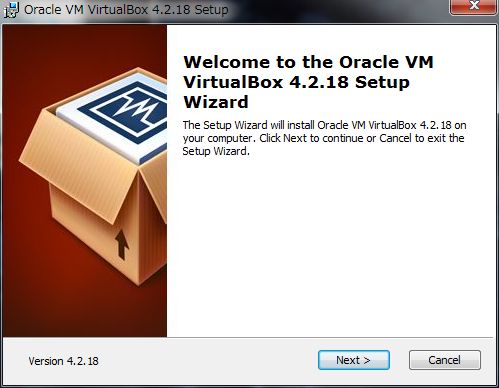
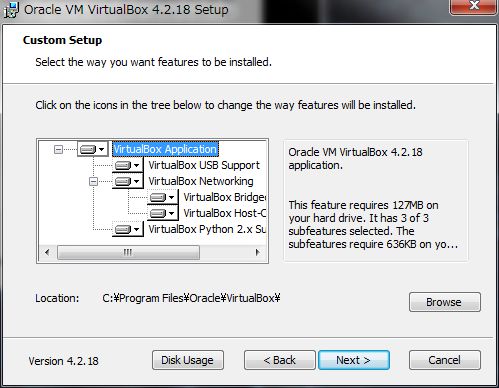
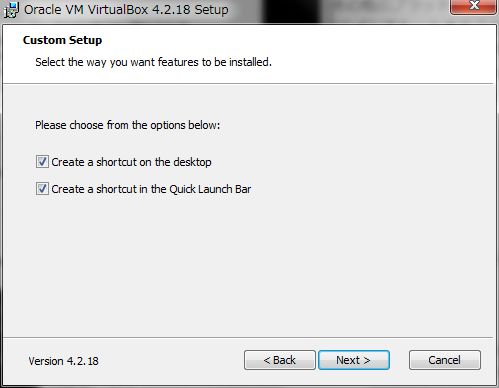
<img src="http://success.tracpath.com/blog/wp-content/uploads/2013/10/1003-06.jpg" alt="1003-06" width="499" height="388" class="aligncenter size-full wp-image-1031" style="clear: both; display: block; margin-left: auto; margin-right: auto; height: auto;" /><img src="http://success.tracpath.com/blog/wp-content/uploads/2013/10/1003-071.jpg" alt="1003-07" width="499" height="388" class="aligncenter size-full wp-image-1033" style="clear: both; display: block; margin-left: auto; margin-right: auto; height: auto;" /><img src="http://success.tracpath.com/blog/wp-content/uploads/2013/10/1003-08.jpg" alt="1003-08" width="499" height="388" class="aligncenter size-full wp-image-1034" style="clear: both; display: block; margin-left: auto; margin-right: auto; height: auto;" />
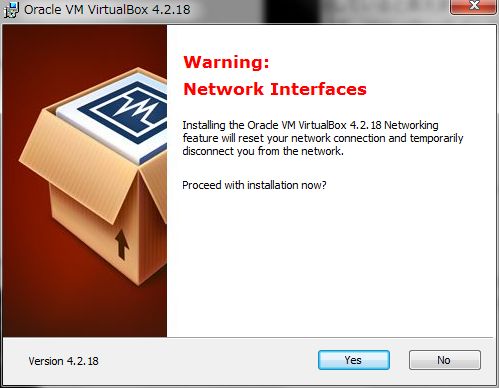
<pre style="border: 0px; font-family: 'Courier 10 Pitch', Courier, monospace; font-size: 13px; margin-top: 0px; margin-bottom: 1.4em; outline: 0px; padding: 0.75em 1.4em; vertical-align: baseline; background-color: #f4f4f4; line-height: 1.5; color: #333333;">③Warning Network Interfacesが表示されたら「Yes」をクリックします。

</pre>
<img src="http://success.tracpath.com/blog/wp-content/uploads/2013/10/1003-09.jpg" alt="1003-09" width="499" height="388" class="aligncenter size-full wp-image-1035" style="clear: both; display: block; margin-left: auto; margin-right: auto; height: auto;" />
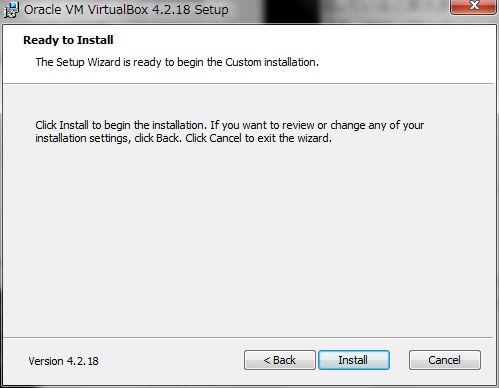
<pre style="border: 0px; font-family: 'Courier 10 Pitch', Courier, monospace; font-size: 13px; margin-top: 0px; margin-bottom: 1.4em; outline: 0px; padding: 0.75em 1.4em; vertical-align: baseline; background-color: #f4f4f4; line-height: 1.5; color: #333333;">④Ready to Install表示されたら「Install」をクリックします。

</pre>
<img src="http://success.tracpath.com/blog/wp-content/uploads/2013/10/1003-10.jpg" alt="1003-10" width="499" height="388" class="aligncenter size-full wp-image-1036" style="clear: both; display: block; margin-left: auto; margin-right: auto; height: auto;" />
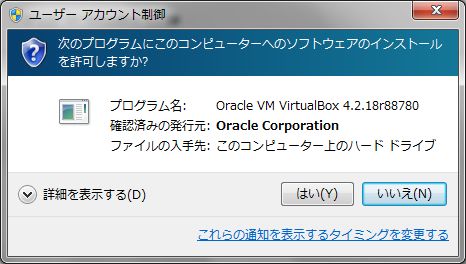
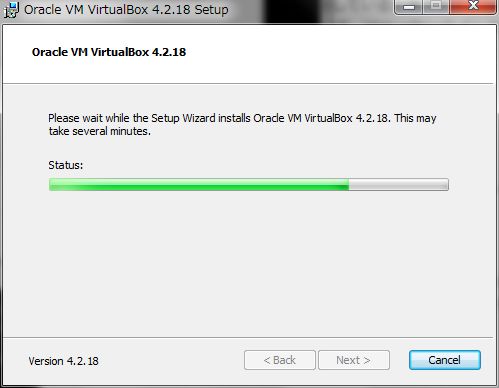
<pre style="border: 0px; font-family: 'Courier 10 Pitch', Courier, monospace; font-size: 13px; margin-top: 0px; margin-bottom: 1.4em; outline: 0px; padding: 0.75em 1.4em; vertical-align: baseline; background-color: #f4f4f4; line-height: 1.5; color: #333333;">⑤インストール中にユーザーアカウント制御(UAC)によってソフトウエアのインストールを許可するか否かを聞いて来ますので、
「はい(Y)」をクリックします。

</pre>
<img src="http://success.tracpath.com/blog/wp-content/uploads/2013/10/1003-11.jpg" alt="1003-11" width="466" height="264" class="aligncenter size-full wp-image-1037" style="clear: both; display: block; margin-left: auto; margin-right: auto; height: auto;" /><img src="http://success.tracpath.com/blog/wp-content/uploads/2013/10/1003-12.jpg" alt="1003-12" width="499" height="388" class="aligncenter size-full wp-image-1038" style="clear: both; display: block; margin-left: auto; margin-right: auto; height: auto;" />
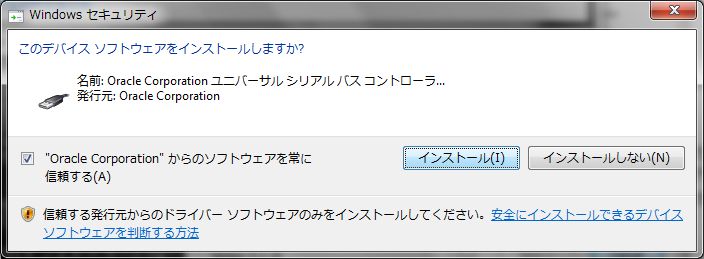
<pre style="border: 0px; font-family: 'Courier 10 Pitch', Courier, monospace; font-size: 13px; margin-top: 0px; margin-bottom: 1.4em; outline: 0px; padding: 0.75em 1.4em; vertical-align: baseline; background-color: #f4f4f4; line-height: 1.5; color: #333333;">⑥「Windows セキュリティ」ダイアログが表示されたら、「Oracle Corporationからのソフトウエアを常に信頼する(A)」をチェックし、
「インストール(I)」をクリックします。

</pre>
<img src="http://success.tracpath.com/blog/wp-content/uploads/2013/10/1003-13.jpg" alt="1003-13" width="704" height="259" class="aligncenter size-full wp-image-1039" style="clear: both; display: block; margin-left: auto; margin-right: auto; height: auto;" />
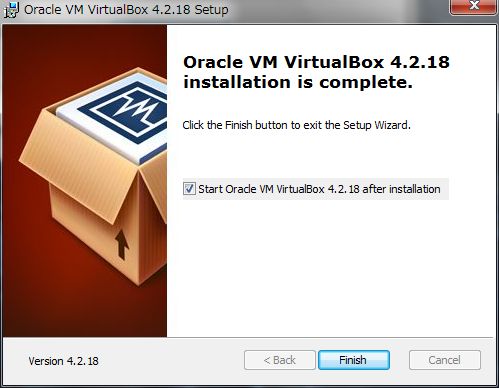
<pre style="border: 0px; font-family: 'Courier 10 Pitch', Courier, monospace; font-size: 13px; margin-top: 0px; margin-bottom: 1.4em; outline: 0px; padding: 0.75em 1.4em; vertical-align: baseline; background-color: #f4f4f4; line-height: 1.5; color: #333333;">⑦インストールが終了すると、デスクトップ上にVirtualBoxのショートカットが作成され、インストールが完了します。

</pre>
<img src="http://success.tracpath.com/blog/wp-content/uploads/2013/10/1003-14.jpg" alt="1003-14" width="499" height="388" class="aligncenter size-full wp-image-1040" style="clear: both; display: block; margin-left: auto; margin-right: auto; height: auto;" />
<div><strong><span style="font-size: x-large;" data-mce-mark="1">②Ubuntsu13.04ISOイメージのダウンロード</span><br />
</strong>
<h3 style="font-family: 'Ubuntu Beta', UbuntuBeta, Ubuntu, 'Bitstream Vera Sans', 'DejaVu Sans', Tahoma, sans-serif; line-height: 19.600000381469727px;">※Ubuntu 13.10 - 2014年6月までサポート</h3>
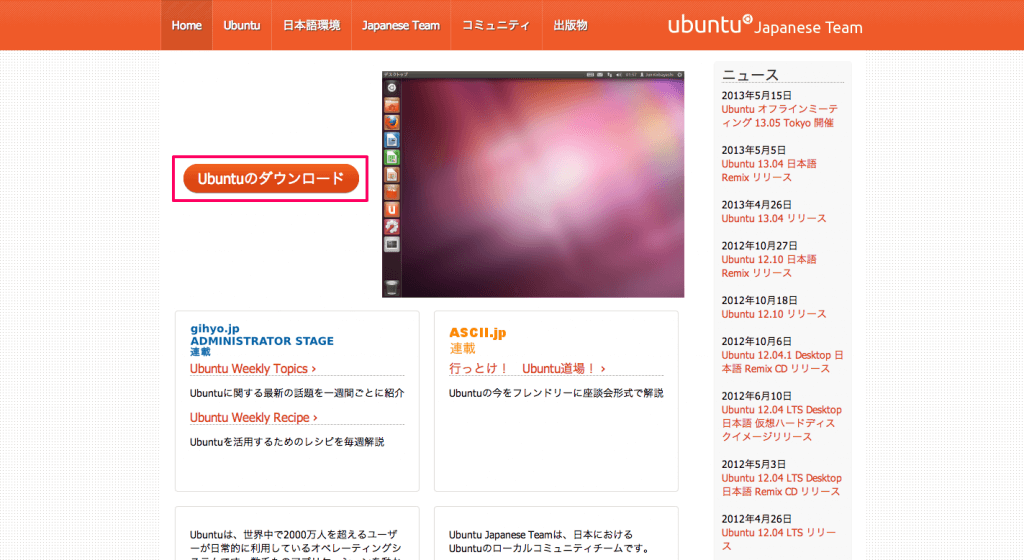
<a href="http://www.ubuntulinux.jp/" title="">「Ubuntu Japanese Team」</a>にアクセスし、Ubuntu 13.04のISOイメージをダウンロードします。<br />

<p style="box-sizing: border-box; margin: 0px 0px 1.5em; padding: 0px; font-size: 15px; line-height: 1.8; color: #222222; font-family: メイリオ, Meiro, 'ヒラギノ角ゴ Pro W3', 'ＭＳ Ｐゴシック', sans-serif;"><a href="http://pc-karuma.net/wp-content/uploads/2013/06/ubuntu-download-04.png" rel="lightbox[gallery-LkIx]" data-lightbox-gallery="lightbox[gallery-LkIx]" style="box-sizing: border-box; margin: 0px; padding: 0px; color: #0065d7; text-decoration: none; outline: none;"><img src="http://pc-karuma.net/wp-content/uploads/2013/06/ubuntu-download-04-625x342.png" alt="ubuntu-download-04" width="625" height="342" class="alignnone size-large wp-image-1208" style="box-sizing: border-box; margin: 0px 0px 10px; padding: 0px; height: auto; display: inline-block; vertical-align: middle;" /></a><br style="box-sizing: border-box; margin: 0px; padding: 0px;" />「Ubuntu ダウンロード」をクリックします。</p>
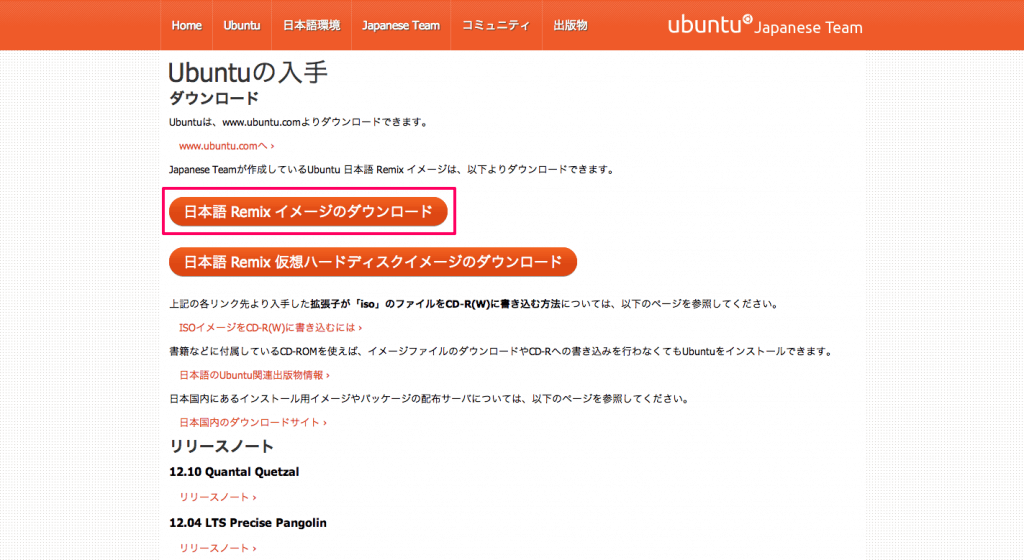
<p style="box-sizing: border-box; margin: 0px 0px 1.5em; padding: 0px; font-size: 15px; line-height: 1.8; color: #222222; font-family: メイリオ, Meiro, 'ヒラギノ角ゴ Pro W3', 'ＭＳ Ｐゴシック', sans-serif;"><a href="http://pc-karuma.net/wp-content/uploads/2013/06/ubuntu-download-011.png" rel="lightbox[gallery-LkIx]" data-lightbox-gallery="lightbox[gallery-LkIx]" style="box-sizing: border-box; margin: 0px; padding: 0px; color: #0065d7; text-decoration: none; outline: none;"><img src="http://pc-karuma.net/wp-content/uploads/2013/06/ubuntu-download-011-625x342.png" alt="ubuntu-download-01" width="625" height="342" class="alignnone size-large wp-image-1207" style="box-sizing: border-box; margin: 0px 0px 10px; padding: 0px; height: auto; display: inline-block; vertical-align: middle;" /></a><br style="box-sizing: border-box; margin: 0px; padding: 0px;" />「日本語Remix イメージのダウンロード」をクリックします。</p>
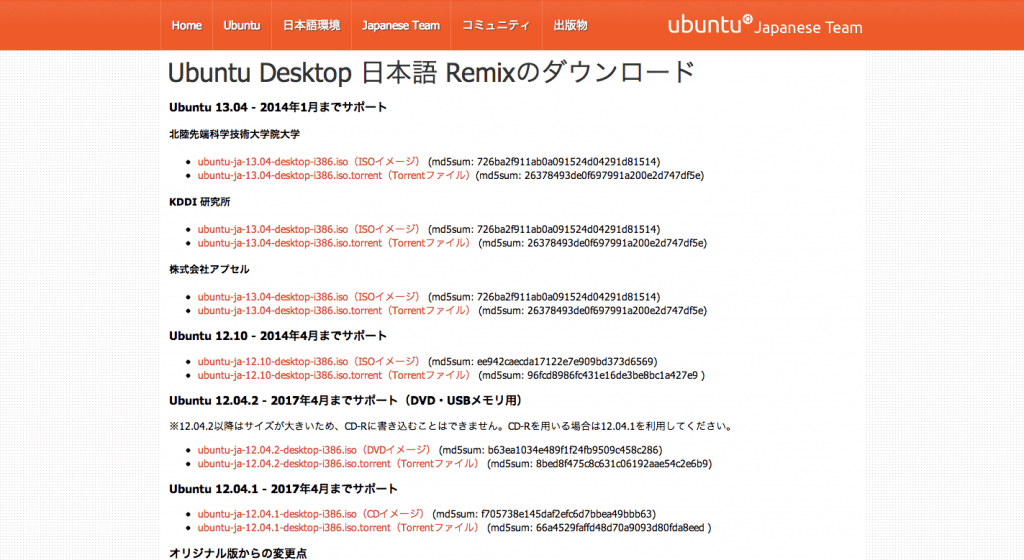
<p style="box-sizing: border-box; margin: 0px 0px 1.5em; padding: 0px; font-size: 15px; line-height: 1.8; color: #222222; font-family: メイリオ, Meiro, 'ヒラギノ角ゴ Pro W3', 'ＭＳ Ｐゴシック', sans-serif;">※仮想ハードディスクイメージは、最新版が用意されていない場合があるので、ここではISOイメージをダウンロードします。<br />
<a href="http://pc-karuma.net/wp-content/uploads/2013/06/ubuntu-download-02.png" rel="lightbox[gallery-LkIx]" data-lightbox-gallery="lightbox[gallery-LkIx]" style="box-sizing: border-box; margin: 0px; padding: 0px; color: #0065d7; text-decoration: none; outline: none;"><img src="http://pc-karuma.net/wp-content/uploads/2013/06/ubuntu-download-02-625x342.png" alt="ubuntu-download-02" width="625" height="342" class="alignnone size-large wp-image-1203" style="box-sizing: border-box; margin: 0px 0px 10px; padding: 0px; height: auto; display: inline-block; vertical-align: middle;" /></a><br style="box-sizing: border-box; margin: 0px; padding: 0px;" />ISOイメージをダウンロードします。※64bit版　&rArr;<a href="http://ftp.jaist.ac.jp/pub/Linux/ubuntu-jp-cdimage/releases/13.10/ubuntu-ja-13.10-desktop-amd64.iso" style="font-size: 14px; color: #dd4814; font-family: 'Ubuntu Beta', UbuntuBeta, Ubuntu, 'Bitstream Vera Sans', 'DejaVu Sans', Tahoma, sans-serif; text-decoration: none; line-height: 19.600000381469727px;">-</a><a href="http://ftp.jaist.ac.jp/pub/Linux/ubuntu-jp-cdimage/releases/13.10/ubuntu-ja-13.10-desktop-amd64.iso" style="font-size: 14px; color: #dd4814; font-family: 'Ubuntu Beta', UbuntuBeta, Ubuntu, 'Bitstream Vera Sans', 'DejaVu Sans', Tahoma, sans-serif; text-decoration: none; line-height: 19.600000381469727px;">ubuntu</a><a href="http://ftp.jaist.ac.jp/pub/Linux/ubuntu-jp-cdimage/releases/13.10/ubuntu-ja-13.10-desktop-amd64.iso" style="font-size: 14px; color: #dd4814; font-family: 'Ubuntu Beta', UbuntuBeta, Ubuntu, 'Bitstream Vera Sans', 'DejaVu Sans', Tahoma, sans-serif; text-decoration: none; line-height: 19.600000381469727px;">ja-13.10-desktop-amd64.iso（ISOイメージ）</a></p>
<p style="box-sizing: border-box; margin: 0px 0px 1.5em; padding: 0px; font-size: 15px; line-height: 1.8; color: #222222; font-family: メイリオ, Meiro, 'ヒラギノ角ゴ Pro W3', 'ＭＳ Ｐゴシック', sans-serif;"><br />
<span style="font-size: x-large;" data-mce-mark="1"><strong>③仮想マシンの作成</strong></span><br />
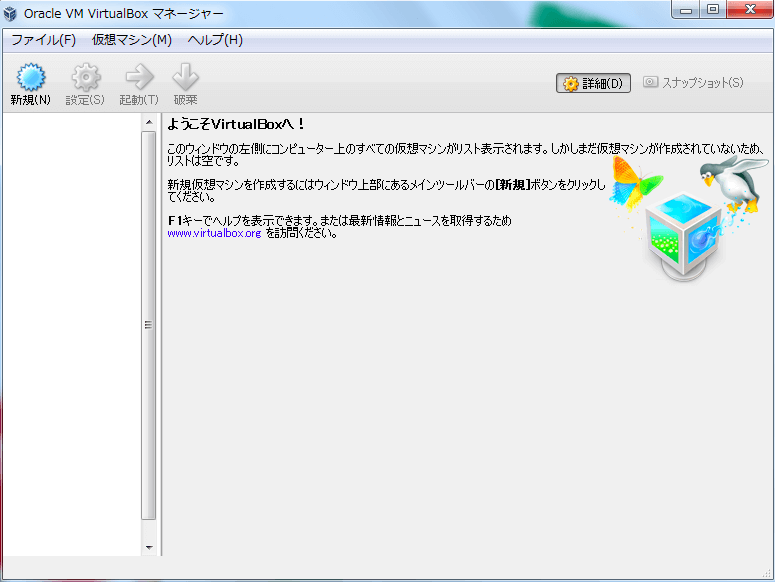
VirtualBoxをインストールすると、Oracle VM VirtualBoxマネージャーのウインドウが開く。<br />
<a href="http://pc-karuma.net/wp-content/uploads/2013/06/virtualbox-00.png" rel="lightbox[gallery-LkIx]" data-lightbox-gallery="lightbox[gallery-LkIx]" style="box-sizing: border-box; margin: 0px; padding: 0px; color: #0065d7; text-decoration: none; outline: none;"><img src="http://pc-karuma.net/wp-content/uploads/2013/06/virtualbox-00-625x469.png" alt="virtualbox-00" width="364" height="469" class="alignnone size-large wp-image-1216" style="margin: 0px 0px 10px; box-sizing: border-box; padding: 0px; height: 273px; display: inline-block; vertical-align: middle;" /></a><br />
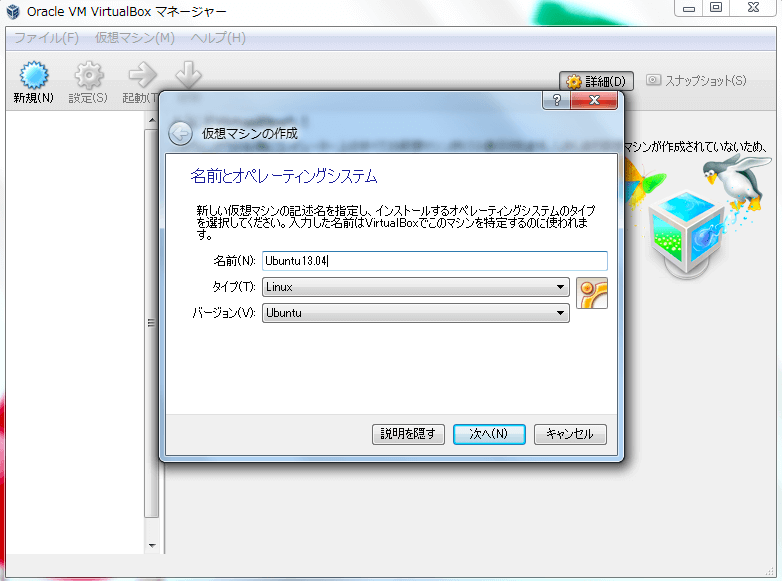
1）仮想マシンの新規作成をする。<br />
名前：ubuntu<br />
タイプ：Linux<br />
バージョン：ubuntu（bit)<br />
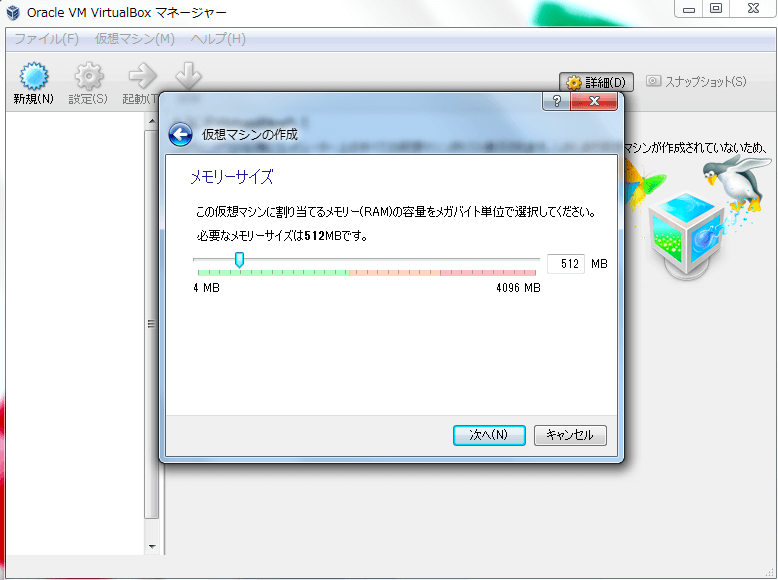
メモリサイズ：1024MB　&larr;1GBにする<br />
<span style="font-size: 14px;" data-mce-mark="1"><a href="http://pc-karuma.net/wp-content/uploads/2013/06/virtualbox-01.png" rel="lightbox[gallery-LkIx]" data-lightbox-gallery="lightbox[gallery-LkIx]" style="box-sizing: border-box; margin: 0px; padding: 0px; color: #0065d7; text-decoration: none; outline: none;"><img src="http://pc-karuma.net/wp-content/uploads/2013/06/virtualbox-01-625x464.png" alt="virtualbox-01" width="371" height="464" class="alignnone size-large wp-image-1217" style="box-sizing: border-box; margin: 0px 0px 10px; padding: 0px; height: 275px; display: inline-block; vertical-align: middle;" /></a></span><a href="http://pc-karuma.net/wp-content/uploads/2013/06/virtualbox-02.png" rel="lightbox[gallery-LkIx]" data-lightbox-gallery="lightbox[gallery-LkIx]" style="box-sizing: border-box; margin: 0px; padding: 0px; color: #0065d7; text-decoration: none; outline: none;"><img src="http://pc-karuma.net/wp-content/uploads/2013/06/virtualbox-02-625x465.png" alt="virtualbox-02" width="370" height="465" class="alignnone size-large wp-image-1218" style="box-sizing: border-box; margin: 0px 0px 10px; padding: 0px; height: 275px; display: inline-block; vertical-align: middle;" /></a></p>
<p style="box-sizing: border-box; margin: 0px 0px 1.5em; padding: 0px; font-size: 15px; line-height: 1.8; color: #222222; font-family: メイリオ, Meiro, 'ヒラギノ角ゴ Pro W3', 'ＭＳ Ｐゴシック', sans-serif;">&darr;<br />
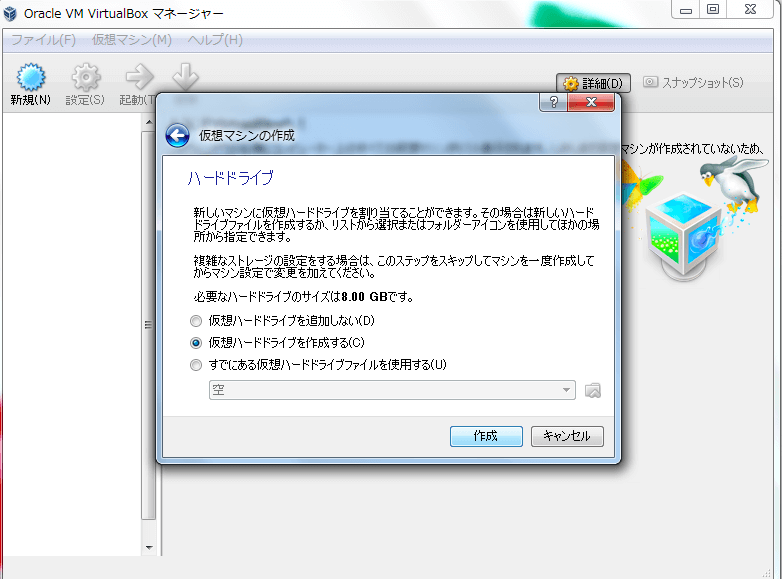
2）仮想ハードドライブを作成する<br />
※ハードドライブのファイルタイプを選択します。他の仮想ソフトウェアで使用する予定がない場合は「VDI（VirtualBox Disk Image）」を選択する。<br />
<a href="http://pc-karuma.net/wp-content/uploads/2013/06/virtualbox-03.png" rel="lightbox[gallery-LkIx]" data-lightbox-gallery="lightbox[gallery-LkIx]" style="box-sizing: border-box; margin: 0px; padding: 0px; color: #0065d7; text-decoration: none; outline: none;"><img src="http://pc-karuma.net/wp-content/uploads/2013/06/virtualbox-03-625x462.png" alt="virtualbox-03" width="367" height="462" class="alignnone size-large wp-image-1219" style="margin: 0px 0px 10px; box-sizing: border-box; padding: 0px; height: 271px; display: inline-block; vertical-align: middle;" /></a><a href="http://pc-karuma.net/wp-content/uploads/2013/06/virtualbox-04.png" rel="lightbox[gallery-LkIx]" data-lightbox-gallery="lightbox[gallery-LkIx]" style="box-sizing: border-box; margin: 0px; padding: 0px; color: #0065d7; text-decoration: none; outline: none;"><img src="http://pc-karuma.net/wp-content/uploads/2013/06/virtualbox-04-625x465.png" alt="virtualbox-04" width="368" height="465" class="alignnone size-large wp-image-1220" style="margin: 0px 0px 10px; box-sizing: border-box; padding: 0px; height: 274px; display: inline-block; vertical-align: middle;" /></a></p>
<p style="box-sizing: border-box; margin: 0px 0px 1.5em; padding: 0px;">&darr;<br />
<span color="#222222" face="メイリオ, Meiro, ヒラギノ角ゴ Pro W3, ＭＳ Ｐゴシック, sans-serif" style="color: #222222; font-family: メイリオ, Meiro, 'ヒラギノ角ゴ Pro W3', 'ＭＳ Ｐゴシック', sans-serif;" data-mce-mark="1">仮想マシンのハードドライブを可変サイズ／固定サイズにするかを選択する。</span><br />
<span color="#222222" face="メイリオ, Meiro, ヒラギノ角ゴ Pro W3, ＭＳ Ｐゴシック, sans-serif" style="color: #222222; font-family: メイリオ, Meiro, 'ヒラギノ角ゴ Pro W3', 'ＭＳ Ｐゴシック', sans-serif;" data-mce-mark="1">固定サイズの方が高速なので、ディスク容量に余裕がある場合は「固定サイズ」を選択する。<br />
</span><a href="http://pc-karuma.net/wp-content/uploads/2013/06/virtualbox-05.png" rel="lightbox[gallery-LkIx]" data-lightbox-gallery="lightbox[gallery-LkIx]" style="font-family: メイリオ, Meiro, 'ヒラギノ角ゴ Pro W3', 'ＭＳ Ｐゴシック', sans-serif; font-size: 15px; line-height: 1.8; box-sizing: border-box; margin: 0px; padding: 0px; color: #0065d7; text-decoration: none; outline: none;"><img src="http://pc-karuma.net/wp-content/uploads/2013/06/virtualbox-05-625x464.png" alt="virtualbox-05" width="371" height="464" class="alignnone size-large wp-image-1221" style="margin: 0px 0px 10px; box-sizing: border-box; padding: 0px; height: 275px; display: inline-block; vertical-align: middle;" /></a><br />
&darr;<br />
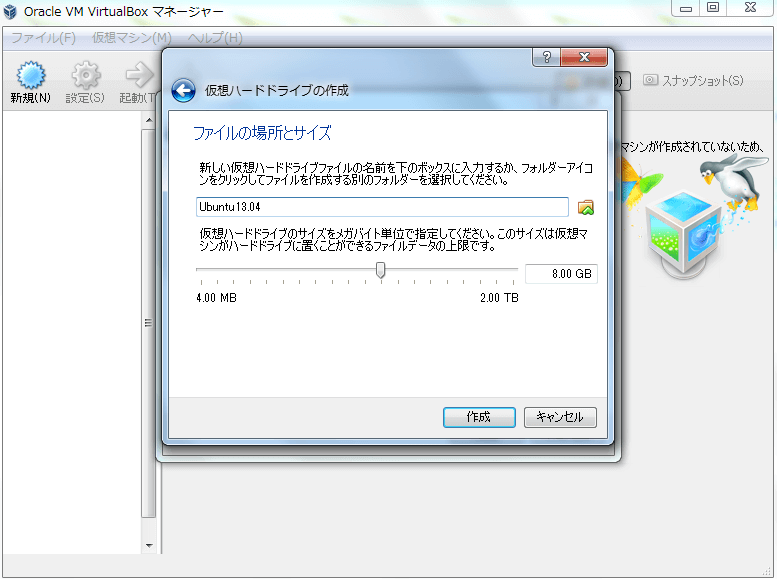
ファイルの場所とサイズを選択する。<br />
仮想ハードドラブの名前：<span face="メイリオ, Meiro, ヒラギノ角ゴ Pro W3, ＭＳ Ｐゴシック, sans-serif" style="font-family: メイリオ, Meiro, 'ヒラギノ角ゴ Pro W3', 'ＭＳ Ｐゴシック', sans-serif;" data-mce-mark="1">ubuntu13.04<br />
</span><span style="font-family: メイリオ, Meiro, 'ヒラギノ角ゴ Pro W3', 'ＭＳ Ｐゴシック', sans-serif; line-height: 25.200000762939453px;" data-mce-mark="1">仮想ハードドラ</span><span style="font-family: メイリオ, Meiro, 'ヒラギノ角ゴ Pro W3', 'ＭＳ Ｐゴシック', sans-serif; line-height: 25.200000762939453px;" data-mce-mark="1">ブのサイズ：8GB<br />
<a href="http://pc-karuma.net/wp-content/uploads/2013/06/virtualbox-06.png" rel="lightbox[gallery-LkIx]" data-lightbox-gallery="lightbox[gallery-LkIx]" style="font-size: 15px; line-height: 1.8; box-sizing: border-box; margin: 0px; padding: 0px; color: #0065d7; text-decoration: none; outline: none;"><img src="http://pc-karuma.net/wp-content/uploads/2013/06/virtualbox-06-625x465.png" alt="virtualbox-06" width="370" height="465" class="alignnone size-large wp-image-1222" style="margin: 0px 0px 10px; box-sizing: border-box; padding: 0px; height: 275px; display: inline-block; vertical-align: middle;" /></a><br />
&darr;<br />
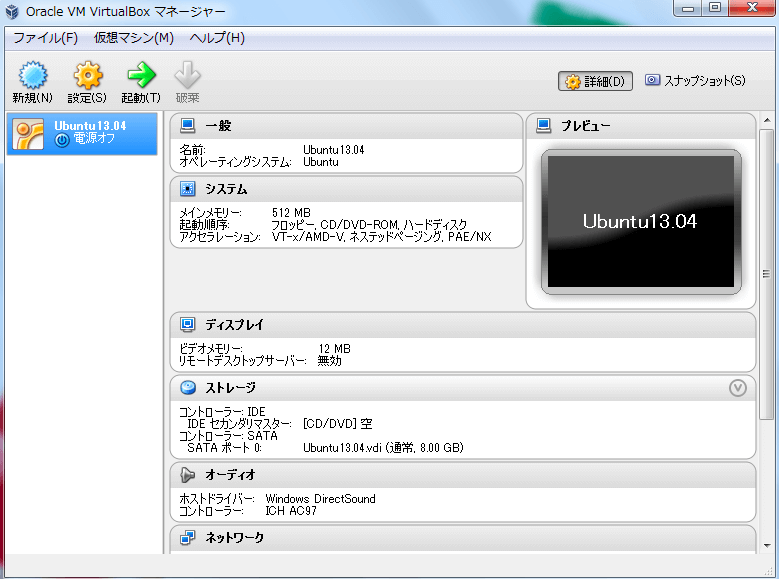
</span><span style="color: #222222; font-family: メイリオ, Meiro, 'ヒラギノ角ゴ Pro W3', 'ＭＳ Ｐゴシック', sans-serif; font-size: 15px; line-height: 27px;" data-mce-mark="1">以上、仮想マシンの作成は完了。<br />
<a href="http://pc-karuma.net/wp-content/uploads/2013/06/virtualbox-07.png" rel="lightbox[gallery-LkIx]" data-lightbox-gallery="lightbox[gallery-LkIx]" style="box-sizing: border-box; margin: 0px; padding: 0px; color: #0065d7; text-decoration: none; outline: none;"><img src="http://pc-karuma.net/wp-content/uploads/2013/06/virtualbox-07-625x464.png" alt="virtualbox-07" width="387" height="464" class="alignnone size-large wp-image-1223" style="box-sizing: border-box; margin: 0px 0px 10px; padding: 0px; height: 287px; display: inline-block; vertical-align: middle;" /></a><br />
<span style="font-size: x-large;" data-mce-mark="1"><strong><br />
④仮想マシンにUbuntu13.04をインストール<br />
</strong></span><br />
1）仮想マシンを「起動」する前に、<br />
ストレージのコントローラ：IDEが「空」になっているので、先ほどダウンロードした<br />
ubuntuのISOイメージを選択しておく。<br />
「設定」<br />
　└「ストレージ」<br />
　　　　　└「IDEコントローラ」でレコードマークを選択し、<br />
　　　　　　　　ubuntuのISOイメージのファイルを選択する。<br />
　　　　　　　　　c:\～￥ubuntu-ja-13.10-desktop-amd64.iso<br />
<br />
<a href="http://pc-karuma.net/wp-content/uploads/2013/06/virtualbox-07.png" rel="lightbox[gallery-LkIx]" data-lightbox-gallery="lightbox[gallery-LkIx]" style="box-sizing: border-box; margin: 0px; padding: 0px; color: #0065d7; text-decoration: none; outline: none;"><img src="http://pc-karuma.net/wp-content/uploads/2013/06/virtualbox-07-625x464.png" alt="virtualbox-07" width="387" height="464" class="alignnone size-large wp-image-1223" style="box-sizing: border-box; margin: 0px 0px 10px; padding: 0px; height: 287px; display: inline-block; vertical-align: middle;" /><br />
</a> </span></p>
<p style="box-sizing: border-box; margin: 0px 0px 1.5em; padding: 0px; font-size: 15px; line-height: 1.8; color: #222222; font-family: メイリオ, Meiro, 'ヒラギノ角ゴ Pro W3', 'ＭＳ Ｐゴシック', sans-serif;"><span color="#222222" face="メイリオ, Meiro, ヒラギノ角ゴ Pro W3, ＭＳ Ｐゴシック, sans-serif" style="color: #222222; font-family: メイリオ, Meiro, 'ヒラギノ角ゴ Pro W3', 'ＭＳ Ｐゴシック', sans-serif;"><span color="#222222" face="メイリオ, Meiro, ヒラギノ角ゴ Pro W3, ＭＳ Ｐゴシック, sans-serif" style="color: #222222; font-family: メイリオ, Meiro, 'ヒラギノ角ゴ Pro W3', 'ＭＳ Ｐゴシック', sans-serif;">2）「起動」<br />
※詳細は以下参照<br />
</span></span><span color="#222222" face="メイリオ, Meiro, ヒラギノ角ゴ Pro W3, ＭＳ Ｐゴシック, sans-serif" style="color: #222222; font-family: メイリオ, Meiro, 'ヒラギノ角ゴ Pro W3', 'ＭＳ Ｐゴシック', sans-serif;"><a href="http://neshikakuget.blog.fc2.com/blog-entry-157.html" title="">http://neshikakuget.blog.fc2.com/blog-entry-157.html</a><br />
</span><a href="http://neshikakuget.blog.fc2.com/img/Ubuntu13_install5.jpg/" target="_blank" style="color: #80008b; font-family: メイリオ, Meiryo, 'ＭＳ Ｐゴシック', 'Hiragino Kaku Gothic Pro', 'ヒラギノ角ゴ Pro W3', Osaka, sans-serif;"><img src="http://blog-imgs-59.fc2.com/n/e/s/neshikakuget/Ubuntu13_install5.jpg" alt="Ubuntu13_install5.jpg" border="0" width="345" height="241" /><br />
</a><br />
以下、選択・入力が必要<br />
・お住まいの地域「東京」<br />
・<span color="#222222" face="メイリオ, Meiro, ヒラギノ角ゴ Pro W3, ＭＳ Ｐゴシック, sans-serif" style="color: #222222; font-family: メイリオ, Meiro, 'ヒラギノ角ゴ Pro W3', 'ＭＳ Ｐゴシック', sans-serif;">「日本語」を選択<br />
・名前<br />
・パスワード<br />
・メールアドレス<br />
※</span><span color="#222222" face="メイリオ, Meiro, ヒラギノ角ゴ Pro W3, ＭＳ Ｐゴシック, sans-serif" style="color: #222222; font-family: メイリオ, Meiro, 'ヒラギノ角ゴ Pro W3', 'ＭＳ Ｐゴシック', sans-serif;">「Ubuntu13.10」から「Ubuntu ONE」のアカウント作成がインストール時に必須となった為、メールアドレスが必要<br />
<br />
3）インストールが始まる。<br />
<img src="http://blog-imgs-59.fc2.com/n/e/s/neshikakuget/Ubuntu13_install19.jpg" alt="Ubuntu13_install19.jpg" width="392" height="286" /><br />
<br />
4）インストール完了したら、再起動する。<br />
<img src="http://blog-imgs-59.fc2.com/n/e/s/neshikakuget/Ubuntu13_install28.jpg" alt="Ubuntu13_install28.jpg" /></span></p>
</div>]]></content:encoded>
    <dc:subject>ローカル開発環境の構築</dc:subject>
    <dc:date>2014-04-11T11:16:40+09:00</dc:date>
    <dc:creator>Jomorich</dc:creator>
    <dc:publisher>NINJA BLOG</dc:publisher>
    <dc:rights>Jomorich</dc:rights>
  </item>
  <item rdf:about="https://witpress.blog.shinobi.jp/html-css/%E4%BD%BF%E7%94%A8%E9%96%A2%E6%95%B0%E7%AD%89%E3%81%AE%E3%82%92%E3%83%9D%E3%83%BC%E3%83%88%E3%81%97%E3%81%A6%E3%81%84%E3%82%8B%E3%83%96%E3%83%A9%E3%82%A6%E3%82%B6%E3%81%AE%E3%83%90%E3%83%BC%E3%82%B8%E3%83%A7%E3%83%B3%E3%82%92%E8%AA%BF%E3%81%B9%E3%82%8B">
    <link>https://witpress.blog.shinobi.jp/html-css/%E4%BD%BF%E7%94%A8%E9%96%A2%E6%95%B0%E7%AD%89%E3%81%AE%E3%82%92%E3%83%9D%E3%83%BC%E3%83%88%E3%81%97%E3%81%A6%E3%81%84%E3%82%8B%E3%83%96%E3%83%A9%E3%82%A6%E3%82%B6%E3%81%AE%E3%83%90%E3%83%BC%E3%82%B8%E3%83%A7%E3%83%B3%E3%82%92%E8%AA%BF%E3%81%B9%E3%82%8B</link>
    <title>使用関数等のをポートしているブラウザのバージョンを調べる</title>
    <description>  CanIUse   
 
</description>
    <content:encoded><![CDATA[<span style="font-size: x-large;"><a href="http://caniuse.com/" title="">CanIUse</a></span><br />
<br />
]]></content:encoded>
    <dc:subject>HTML+CSS</dc:subject>
    <dc:date>2014-04-05T14:35:38+09:00</dc:date>
    <dc:creator>Jomorich</dc:creator>
    <dc:publisher>NINJA BLOG</dc:publisher>
    <dc:rights>Jomorich</dc:rights>
  </item>
  <item rdf:about="https://witpress.blog.shinobi.jp/%E6%9C%AA%E9%81%B8%E6%8A%9E/php%E6%8A%80%E8%A1%93%E8%80%85%E8%AA%8D%E5%AE%9A%E8%A9%A6%E9%A8%93%E3%80%80%E5%88%9D%E7%B4%9A%E5%90%88%E6%A0%BC%E3%80%82">
    <link>https://witpress.blog.shinobi.jp/%E6%9C%AA%E9%81%B8%E6%8A%9E/php%E6%8A%80%E8%A1%93%E8%80%85%E8%AA%8D%E5%AE%9A%E8%A9%A6%E9%A8%93%E3%80%80%E5%88%9D%E7%B4%9A%E5%90%88%E6%A0%BC%E3%80%82</link>
    <title>PHP技術者認定試験　初級合格。</title>
    <description>    プロメトリック小倉旦過試験場で受験。</description>
    <content:encoded><![CDATA[<a title="" href="//witpress.blog.shinobi.jp/File/php_logo.jpg" target="_blank"><img alt="" src="//witpress.blog.shinobi.jp/Img/1396603602/" /></a> プロメトリック小倉旦過試験場で受験。]]></content:encoded>
    <dc:subject>備忘録</dc:subject>
    <dc:date>2014-04-04T18:26:57+09:00</dc:date>
    <dc:creator>Jomorich</dc:creator>
    <dc:publisher>NINJA BLOG</dc:publisher>
    <dc:rights>Jomorich</dc:rights>
  </item>
  <item rdf:about="https://witpress.blog.shinobi.jp/%E6%9C%AA%E9%81%B8%E6%8A%9E/%E3%80%8Cdropbox%E3%80%8D%E3%81%A8%E3%80%8Cevernote%E3%80%8D%E3%81%AE%E9%81%95%E3%81%84%E3%81%A8%E3%81%AF">
    <link>https://witpress.blog.shinobi.jp/%E6%9C%AA%E9%81%B8%E6%8A%9E/%E3%80%8Cdropbox%E3%80%8D%E3%81%A8%E3%80%8Cevernote%E3%80%8D%E3%81%AE%E9%81%95%E3%81%84%E3%81%A8%E3%81%AF</link>
    <title>「Dropbox」と「Evernote」の違いとは - 書類作成に追われる人にオススメの機能と使い方</title>
    <description>何でも保存できて、持ち出しも便利な「Dropbox」
「Dropbox」は、オンラインストレージのなかでも極めて人気のあるサービス。主な魅力は、次の5点。

どんな形式のファイルでも保存可能。
インターネットに繋がっている場所なら、原則どこでもアクセス可能。
対応アプリがあれば、ストレージ内のファイ...</description>
    <content:encoded><![CDATA[<h2 style="margin: 20px 0px; padding: 20px 0px 0px; font-size: 24px; color: #222222; clear: both; line-height: 1.4em; border-bottom-width: 5px; border-bottom-style: dotted; border-bottom-color: #e5e5e2; font-family: 'ヒラギノ角ゴ Pro W3', 'Hiragino Kaku Gothic Pro', メイリオ, Meiryo, 'ＭＳ Ｐゴシック', sans-serif;"><a href="http://appllio.com/explanation/o01-20130116-2986-dropbox-evernote" title=""><img src="http://appllio.com/sites/default/files/styles/article-center/public/field/image/dropbox-evernote.jpg" alt="「Dropbox」と「Evernote」の違いとは - 書類作成に追われる人にオススメの機能と使い方" title="「Dropbox」と「Evernote」の違いとは - 書類作成に追われる人にオススメの機能と使い方" class="image-article-center" pagespeed_url_hash="2177585313" style="border-width: 0px; height: 161px; margin: 0px auto 20px; display: block; clear: both; width: 263px; color: #333333; font-family: 'ヒラギノ角ゴ Pro W3', 'Hiragino Kaku Gothic Pro', メイリオ, Meiryo, 'ＭＳ Ｐゴシック', sans-serif; font-size: 16px; line-height: 27.200000762939453px;" /></a>何でも保存できて、持ち出しも便利な「Dropbox」</h2>
<p style="margin: 0px 25px 1em; padding: 0px; color: #333333; font-family: 'ヒラギノ角ゴ Pro W3', 'Hiragino Kaku Gothic Pro', メイリオ, Meiryo, 'ＭＳ Ｐゴシック', sans-serif; font-size: 16px; line-height: 27.200000762939453px;">「Dropbox」は、オンラインストレージのなかでも極めて人気のあるサービス。主な魅力は、次の5点。</p>
<ul style="margin: 0px 20px 1.5em 50px; padding: 0px;">
<li style="color: #333333; font-family: 'ヒラギノ角ゴ Pro W3', 'Hiragino Kaku Gothic Pro', メイリオ, Meiryo, 'ＭＳ Ｐゴシック', sans-serif; font-size: 16px; line-height: 27.200000762939453px; margin: 0px; padding: 0px;">どんな形式のファイルでも保存可能。</li>
<li style="color: #333333; font-family: 'ヒラギノ角ゴ Pro W3', 'Hiragino Kaku Gothic Pro', メイリオ, Meiryo, 'ＭＳ Ｐゴシック', sans-serif; font-size: 16px; line-height: 27.200000762939453px; margin: 0px; padding: 0px;">インターネットに繋がっている場所なら、原則どこでもアクセス可能。</li>
<li style="color: #333333; font-family: 'ヒラギノ角ゴ Pro W3', 'Hiragino Kaku Gothic Pro', メイリオ, Meiryo, 'ＭＳ Ｐゴシック', sans-serif; font-size: 16px; line-height: 27.200000762939453px; margin: 0px; padding: 0px;">対応アプリがあれば、ストレージ内のファイルを編集閲覧可能。</li>
<li style="color: #333333; font-family: 'ヒラギノ角ゴ Pro W3', 'Hiragino Kaku Gothic Pro', メイリオ, Meiryo, 'ＭＳ Ｐゴシック', sans-serif; font-size: 16px; line-height: 27.200000762939453px; margin: 0px; padding: 0px;">編集して保存すれば更新されて、他の端末でも更新してくれる。</li>
<li style="color: #333333; font-family: 'ヒラギノ角ゴ Pro W3', 'Hiragino Kaku Gothic Pro', メイリオ, Meiryo, 'ＭＳ Ｐゴシック', sans-serif; font-size: 16px; line-height: 27.200000762939453px; margin: 0px; padding: 0px;">スマートフォンなら、メールに添付されてきたファイルを保存してその場で開ける。
<h3 style="margin: 32px 0px 16px; padding: 0px 0px 0px 7px; font-size: 18px; line-height: 1.4em; color: #222222; clear: both; border-left-width: 5px; border-left-style: solid; border-left-color: #e5e5e2;"><img typeof="foaf:Image" src="http://appllio.com/sites/default/files/styles/article-right/public/field/image/e-d-20130116-2.jpg" alt="Dropbox" title="Dropbox" class="image-article-right" pagespeed_url_hash="1664355659" style="border-width: 0px; height: auto; float: right; margin: 0px 0px 20px 20px; width: auto; color: #2381bd; font-size: 16px; font-weight: normal; line-height: 27.200000762939453px;" />「Dropbox」の短所</h3>
<p style="margin: 0px 25px 1em; padding: 0px; font-size: 16px;">「Dropbox」の欠点を挙げるとすれば、原則として、無料で利用する場合の保存容量が初期で2GBとやや小さいこと。画像の保管等をすれば、容量はすぐに埋まってしまう。普段から32GBくらいのUSBメモリを頻繁に使っている方には物足りないだろう。</p>
</li>
</ul>
<h2 style="margin: 20px 0px; padding: 20px 0px 0px; font-size: 24px; color: #222222; clear: both; line-height: 1.4em; border-bottom-width: 5px; border-bottom-style: dotted; border-bottom-color: #e5e5e2; font-family: 'ヒラギノ角ゴ Pro W3', 'Hiragino Kaku Gothic Pro', メイリオ, Meiryo, 'ＭＳ Ｐゴシック', sans-serif;">メモはこれ一つでこと足りる「Evernote」</h2>
<p style="margin: 0px 25px 1em; padding: 0px; color: #333333; font-family: 'ヒラギノ角ゴ Pro W3', 'Hiragino Kaku Gothic Pro', メイリオ, Meiryo, 'ＭＳ Ｐゴシック', sans-serif; font-size: 16px; line-height: 27.200000762939453px;">「Evernote」は、「Dropbox」のように何でも保存すればよいストレージとは異なる。基本的にはほぼ無限にメモ書きを残せるストレージだが、実際はかなり機能が豊富だ。主な魅力は、次の4点。</p>
<ul style="margin: 0px 20px 1.5em 50px; padding: 0px; color: #333333; font-family: 'ヒラギノ角ゴ Pro W3', 'Hiragino Kaku Gothic Pro', メイリオ, Meiryo, 'ＭＳ Ｐゴシック', sans-serif; font-size: 16px; line-height: 27.200000762939453px;">
<li style="margin: 0px; padding: 0px;">１カ月内に決められた容量までなら、いくらでも保存可能。</li>
<li style="margin: 0px; padding: 0px;">そのままメモ書きなどをするのだが、画像の挿入やチェックリスト作成など、高機能なテキストエディタでもある。</li>
<li style="margin: 0px; padding: 0px;">Webクリップ機能で好きなWebページを簡単に保存し、いつでも閲覧可能。</li>
<li style="margin: 0px; padding: 0px;">もちろんパソコン版のアプリもあり、双方の編集結果が反映される。</li>
</ul>
<p style="margin: 0px 25px 1em; padding: 0px; color: #333333; font-family: 'ヒラギノ角ゴ Pro W3', 'Hiragino Kaku Gothic Pro', メイリオ, Meiryo, 'ＭＳ Ｐゴシック', sans-serif; font-size: 16px; line-height: 27.200000762939453px;"><a href="http://appllio.com/sites/default/files/field/image/e-d-20130116-3.jpg" title="Evernote" class="colorbox colorbox-insert-image init-colorbox-processed cboxElement" rel="gallery-all" style="margin: 0px; padding: 0px; outline: none; color: #2381bd; text-decoration: none;"><img typeof="foaf:Image" src="http://appllio.com/sites/default/files/styles/article-right/public/field/image/e-d-20130116-3.jpg" alt="Evernote" title="Evernote" class="image-article-right" pagespeed_url_hash="1958855580" style="border-width: 0px; height: auto; float: right; margin: 0px 0px 20px 20px; width: auto;" /></a></p>
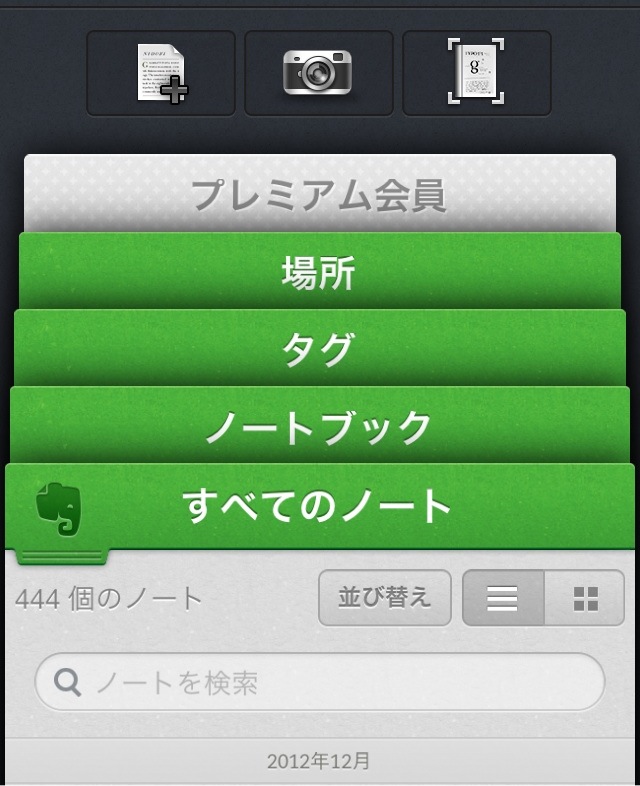
<p style="margin: 0px 25px 1em; padding: 0px; color: #333333; font-family: 'ヒラギノ角ゴ Pro W3', 'Hiragino Kaku Gothic Pro', メイリオ, Meiryo, 'ＭＳ Ｐゴシック', sans-serif; font-size: 16px; line-height: 27.200000762939453px;">「Evernote」は、<b style="color: #444444;">単体でテキストエディタとオンラインストレージを兼ね備えているアプリだ。<br />
</b></p>
<p style="margin: 0px 25px 1em; padding: 0px; color: #333333; font-family: 'ヒラギノ角ゴ Pro W3', 'Hiragino Kaku Gothic Pro', メイリオ, Meiryo, 'ＭＳ Ｐゴシック', sans-serif; font-size: 16px; line-height: 27.200000762939453px;">数ある機能のなかでオススメなのが、<b style="color: #444444;">Webクリップ機能</b>だ。</p>
<p style="margin: 0px 25px 1em; padding: 0px; color: #333333; font-family: 'ヒラギノ角ゴ Pro W3', 'Hiragino Kaku Gothic Pro', メイリオ, Meiryo, 'ＭＳ Ｐゴシック', sans-serif; font-size: 16px; line-height: 27.200000762939453px;">Webクリップ機能は気に入ったウェブページを保存しておける機能で、保存後は自分が消去しない限り、いつでも見返すことができる。</p>
<h3 style="margin: 32px 0px 16px; padding: 0px 0px 0px 7px; font-size: 18px; line-height: 1.4em; color: #222222; clear: both; border-left-width: 5px; border-left-style: solid; border-left-color: #e5e5e2; font-family: 'ヒラギノ角ゴ Pro W3', 'Hiragino Kaku Gothic Pro', メイリオ, Meiryo, 'ＭＳ Ｐゴシック', sans-serif;">「Evernote」の短所</h3>
<p style="margin: 0px 25px 1em; padding: 0px; color: #333333; font-family: 'ヒラギノ角ゴ Pro W3', 'Hiragino Kaku Gothic Pro', メイリオ, Meiryo, 'ＭＳ Ｐゴシック', sans-serif; font-size: 16px; line-height: 27.200000762939453px;">「Evernote」の欠点は、無料アカウントだと１カ月に60MBまでしか保存できないことくらいだろう。</p>
<p style="margin: 0px 25px 1em; padding: 0px; color: #333333; font-family: 'ヒラギノ角ゴ Pro W3', 'Hiragino Kaku Gothic Pro', メイリオ, Meiryo, 'ＭＳ Ｐゴシック', sans-serif; font-size: 16px; line-height: 27.200000762939453px;">1カ月に60MBと聞くと非常に少なさそうだが、テキストの保存が中心の場合は十分な容量だ。Webクリップを使用する場合でも、そこまでの容量を必要としないケースがほとんどだろう。</p>
<p style="margin: 0px 25px 1em; padding: 0px; color: #333333; font-family: 'ヒラギノ角ゴ Pro W3', 'Hiragino Kaku Gothic Pro', メイリオ, Meiryo, 'ＭＳ Ｐゴシック', sans-serif; font-size: 16px; line-height: 27.200000762939453px;"></p>
<p style="margin: 0px 25px 1em; padding: 0px; color: #333333; font-family: 'ヒラギノ角ゴ Pro W3', 'Hiragino Kaku Gothic Pro', メイリオ, Meiryo, 'ＭＳ Ｐゴシック', sans-serif; font-size: 16px; line-height: 27.200000762939453px;">利用できる容量は１カ月毎に増え続けるが、保存できるノートブックの数は10万まで。こちらも定期的に整理整頓をしておけば対処できる。</p>
<h2 style="margin: 20px 0px; padding: 20px 0px 0px; font-size: 24px; color: #222222; clear: both; line-height: 1.4em; border-bottom-width: 5px; border-bottom-style: dotted; border-bottom-color: #e5e5e2; font-family: 'ヒラギノ角ゴ Pro W3', 'Hiragino Kaku Gothic Pro', メイリオ, Meiryo, 'ＭＳ Ｐゴシック', sans-serif;">「Dropbox」と「Evernote」のオススメの使い方</h2>
<p style="margin: 0px 25px 1em; padding: 0px; color: #333333; font-family: 'ヒラギノ角ゴ Pro W3', 'Hiragino Kaku Gothic Pro', メイリオ, Meiryo, 'ＭＳ Ｐゴシック', sans-serif; font-size: 16px; line-height: 27.200000762939453px;"></p>
<p style="margin: 0px 25px 1em; padding: 0px; color: #333333; font-family: 'ヒラギノ角ゴ Pro W3', 'Hiragino Kaku Gothic Pro', メイリオ, Meiryo, 'ＭＳ Ｐゴシック', sans-serif; font-size: 16px; line-height: 27.200000762939453px;">「Dropbox」は、<b style="color: #444444; font-size: 16px;">作業中のバックアップ、複数端末での共有、ファイルの一時置き場</b>として使うと便利だ。<br />
<br />
Evernoteで複数のWebページをまとめて管理。<br />
</p>
<div style="clear: both;"></div>]]></content:encoded>
    <dc:subject>備忘録</dc:subject>
    <dc:date>2014-04-03T21:57:03+09:00</dc:date>
    <dc:creator>Jomorich</dc:creator>
    <dc:publisher>NINJA BLOG</dc:publisher>
    <dc:rights>Jomorich</dc:rights>
  </item>
  <item rdf:about="https://witpress.blog.shinobi.jp/.install/.install">
    <link>https://witpress.blog.shinobi.jp/.install/.install</link>
    <title>.install</title>
    <description>
無料の3分動画でマスターできる、初心者向けプログラミング学習サイトです。


ドットインストールとは？

ドットインストールは、動画でプログラミングを学べる初心者向けのプログラミング学習サービスです。
人気ブログの100SHIKIを運営していることでも有名な田口元氏が2011年11月にリリースしま...</description>
    <content:encoded><![CDATA[<a href="http://dotinstall.com/" title="" style="color: #333333; font-family: Arial, 'Helvetica Neue', Helvetica, sans-serif; font-size: 12px; line-height: 18px;"><img src="http://dotinstall.com/img/footer_logo.png" width="190" height="190" alt=".install" style="height: auto; vertical-align: middle; border-width: 0px; color: #333333; font-family: Arial, 'Helvetica Neue', Helvetica, sans-serif; font-size: 12px; line-height: 18px; text-align: center; background-color: #f8f8f8;" /><br />
</a>無料の3分動画でマスターできる、初心者向けプログラミング学習サイトです。<br />
<a href="http://www.ideaxidea.com/" id="logo_text" style="color: #888888; text-decoration: none; outline: none; font-size: 32px; font-family: 'Century Gothic', Arial, Helvetica, sans-serif; background-color: #e3e3e3;"></a>
<h2 style="font-size: 18px; border-left-style: solid; border-left-width: 6px; border-left-color: #2a7437; margin: 20px 0px; padding: 3px 0px 2px 10px; color: #333333; font-family: メイリオ, Meiryo, 'Hiragino Kaku Gothic Pro', 'MS PGothic', sans-serif; letter-spacing: 0.5199999809265137px;"><br />
ドットインストールとは？</h2>
<p style="font-size: 14px; padding: 0px; margin: 10px 0px; color: #333333; font-family: メイリオ, Meiryo, 'Hiragino Kaku Gothic Pro', 'MS PGothic', sans-serif; letter-spacing: 0.5199999809265137px; background-color: #ffffff;"><a href="http://dotinstall.com/" title=""><img class="alignnone size-full wp-image-1069" alt="ドットインストールTOP" src="http://magazine-cdn.techacademy.jp/magazine/wp-content/uploads/2013/10/a8f84b5c7e0801970fbd3fb7677ccf96.png" width="610" height="393" style="vertical-align: bottom; outline: none; background-color: #f5f5f5; margin: 20px auto;" /></a></p>
<p style="font-size: 14px; padding: 0px; margin: 10px 0px; color: #333333; font-family: メイリオ, Meiryo, 'Hiragino Kaku Gothic Pro', 'MS PGothic', sans-serif; letter-spacing: 0.5199999809265137px; background-color: #ffffff;"><span style="color: #000000;"><a href="http://dotinstall.com/" title="">ドットインストール</a>は、動画でプログラミングを学べる<strong>初心者向けのプログラミング学習サービス</strong>です。</span></p>
<p style="font-size: 14px; padding: 0px; margin: 10px 0px; color: #333333; font-family: メイリオ, Meiryo, 'Hiragino Kaku Gothic Pro', 'MS PGothic', sans-serif; letter-spacing: 0.5199999809265137px; background-color: #ffffff;"><span style="color: #000000;">人気ブログの<a href="http://www.100shiki.com/" title="">100SHIKI</a>を運営していることでも有名な田口元氏が2011年11月にリリースしました。</span></p>
<p style="font-size: 14px; padding: 0px; margin: 10px 0px; color: #333333; font-family: メイリオ, Meiryo, 'Hiragino Kaku Gothic Pro', 'MS PGothic', sans-serif; letter-spacing: 0.5199999809265137px; background-color: #ffffff;"><span style="color: #000000;">海外をはじめ、国内でもプログラミングのオンライン学習サービスが立ち上がっていますが、ドットインストールは国内における火付け役とも言える存在です。</span></p>
<p style="font-size: 14px; padding: 0px; margin: 10px 0px; color: #333333; font-family: メイリオ, Meiryo, 'Hiragino Kaku Gothic Pro', 'MS PGothic', sans-serif; letter-spacing: 0.5199999809265137px; background-color: #ffffff;"><span style="color: #000000;">&nbsp;</span></p>
<p style="font-size: 14px; padding: 0px; margin: 10px 0px; color: #333333; font-family: メイリオ, Meiryo, 'Hiragino Kaku Gothic Pro', 'MS PGothic', sans-serif; letter-spacing: 0.5199999809265137px; background-color: #ffffff;"><span style="color: #000000;">JavaScriptやPHPなど、言語や技術毎にカリキュラムが別れており、カリキュラムは1分〜3分程度の短い動画が10本〜30本程度のボリュームで構成されています。</span></p>
<p style="font-size: 14px; padding: 0px; margin: 10px 0px; color: #333333; font-family: メイリオ, Meiryo, 'Hiragino Kaku Gothic Pro', 'MS PGothic', sans-serif; letter-spacing: 0.5199999809265137px; background-color: #ffffff;"><span style="color: #000000;">2013年11月現在、154レッスン2,227本の無料動画が公開されています。</span></p>]]></content:encoded>
    <dc:subject>.install</dc:subject>
    <dc:date>2014-04-01T23:01:59+09:00</dc:date>
    <dc:creator>Jomorich</dc:creator>
    <dc:publisher>NINJA BLOG</dc:publisher>
    <dc:rights>Jomorich</dc:rights>
  </item>
</rdf:RDF>